How to install the Android app, pin the teacher web portal to your phone or computer, sign in, and use every page: fees, attendance, leave, incidents, activities, and your own details.
24 September 2026Portal version 1.0admin.naginasocialwelfare.co.uk
You are reading the manual online. Save a copy to keep or print.
The teacher web portal is how teachers run day-to-day work for Markaz Deen-e-Islam. You can use the Android app shared with admins, or the teacher web portal on a computer, tablet, or phone. You only see students in the classes the office has assigned to you.
Sign in with the email address the office gave you. The password is the one you chose from the invite email, or the one you set after a reset. There is no public registration.
About these pictures. The portal pages were taken on 24 September 2026 while signed in as Test Teacher (email test@test.io), assigned to TestClass. Leave and incident lists are empty because nothing is pending. Students Furqan and Test Student appear on attendance and related pages. The Chrome and Safari pictures are guides to the menus you will see. The icon those menus create is named Markaz Admin.
Teacher web portal: https://admin.naginasocialwelfare.co.uk
2. Get the app
Android · available now
Markaz-e Deen-e Islam
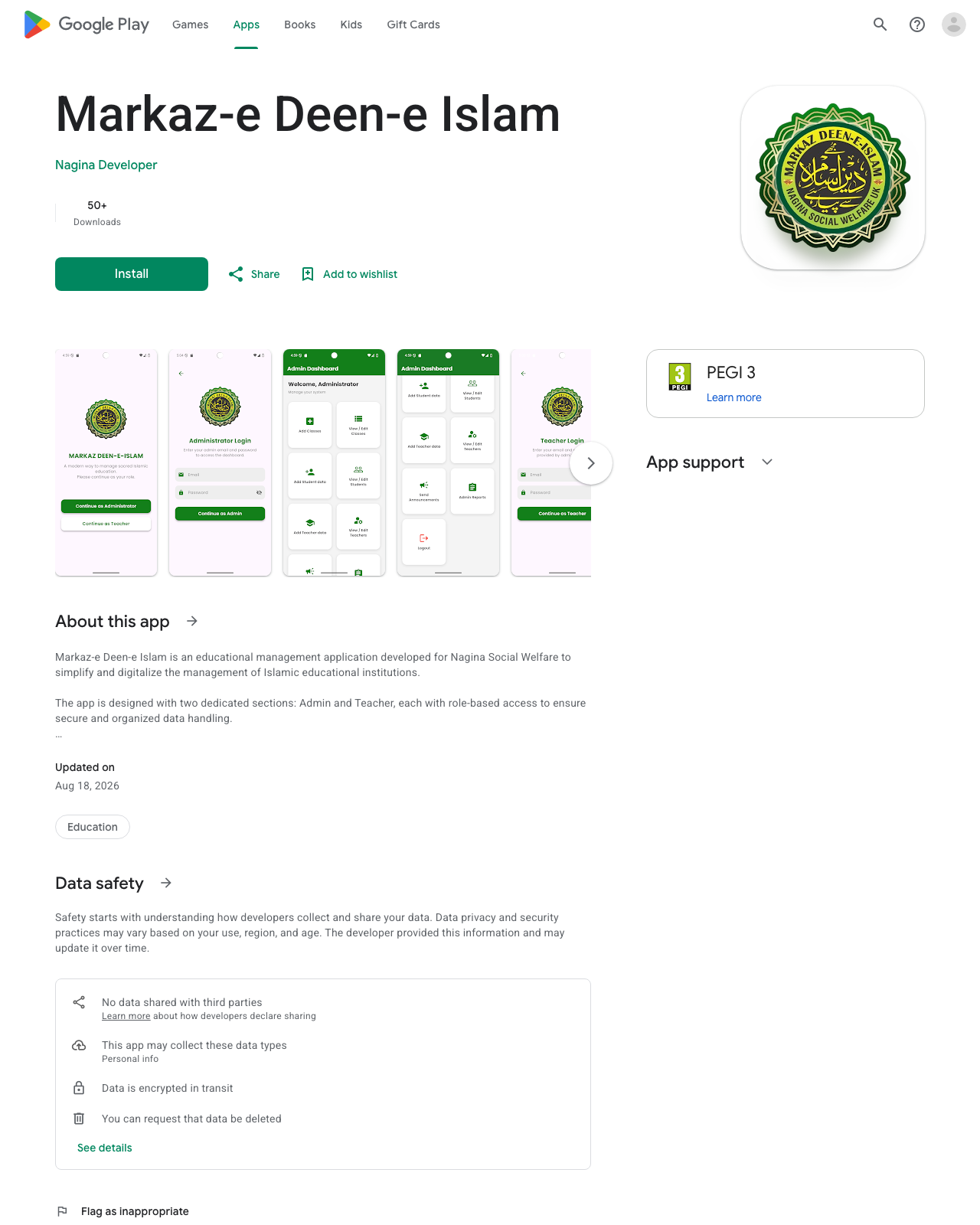
On an Android phone, install Markaz-e Deen-e Islam from Google Play. It is published for admins and teachers. The office gives you the email and password. You cannot create an account from the store page.
On the phone, open the Play Store link above, or search for Markaz-e Deen-e Islam.
Check the crest and the publisher name, then tap Install.
Open the app and sign in with the teacher email and password the office gave you.
Support for the app is info@naginasocialwelfare.co.uk.
iPhone · coming soon
App Store version
A native iPhone app is on the way. It is not on the App Store yet, so there is nothing to download from Apple.
Until that app is released, open the teacher web portal in Safari and add it to your Home Screen. The steps are in the next chapter. It then opens from an icon, the same way an app does, and you sign in with the same email.
Figure 1. The Android app on Google Play. Tap Install, then sign in with the email from the office.
3. Open it like an app
The teacher web portal can also sit on your home screen or in the Dock. It opens in its own window, without the usual browser tabs. Use the same address and the same sign-in. The icon is labelled Markaz Admin.
Chrome on a computer
Open Chrome and go to https://admin.naginasocialwelfare.co.uk/login/teacher.
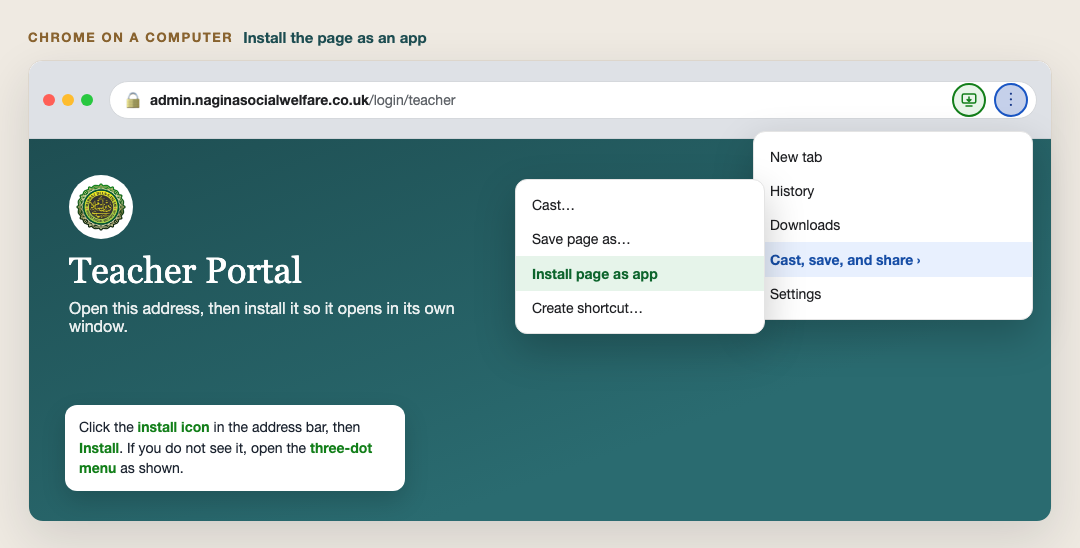
At the right of the address bar, click the install icon (a small screen with an arrow), then Install.
If that icon is missing, click the three-dot menu, then Cast, save, and share, then Install page as app.
The portal opens in its own window. You can also open it later from the Dock or the Start menu.
Figure 2. Chrome on a computer. Use the install icon, or the three-dot menu. This picture is a guide of the menus.
Chrome on Android
Use this when you want the teacher web portal itself on the home screen, as well as, or instead of, the Play Store app.
Open the teacher web portal in Chrome.
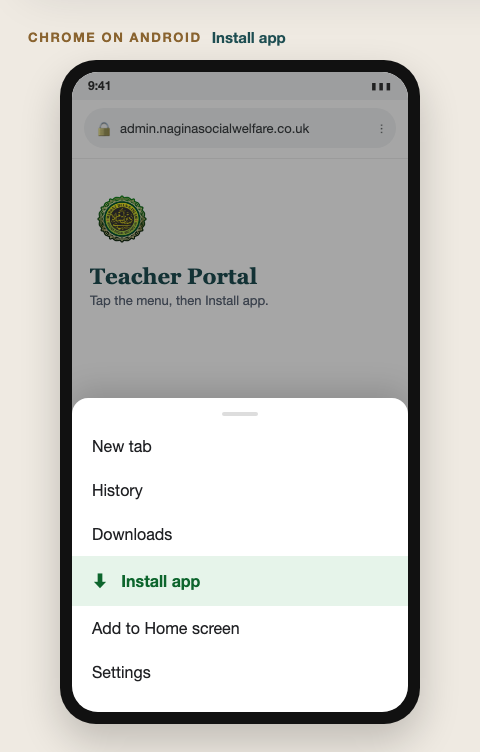
Tap the three-dot menu at the top right.
Tap Install app. If you only see Add to Home screen, tap that instead.
Confirm. The Markaz Admin icon appears on the home screen.
Figure 3. Chrome on Android. Install app, or Add to Home screen. This picture is a guide of the menus.
Safari on iPhone
This is the way to use the portal on an iPhone while the App Store app is still coming.
Open the teacher web portal in Safari. Other browsers on iPhone do not offer Add to Home Screen in the same way.
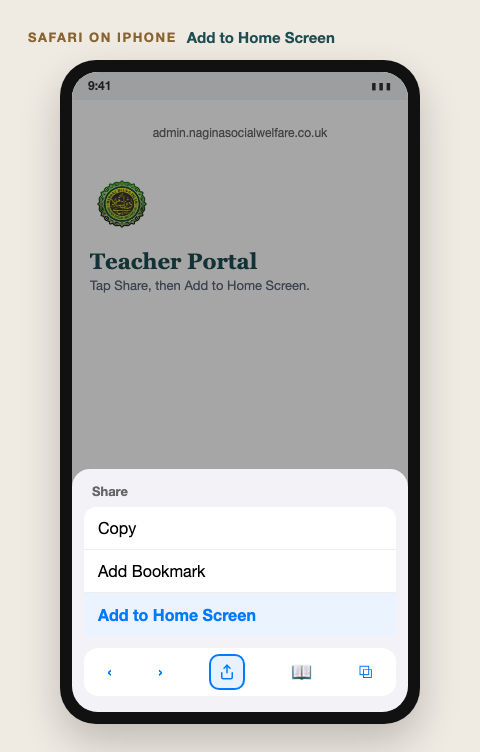
Tap the Share button (the square with an arrow).
Scroll the share sheet and tap Add to Home Screen.
The name shown is Markaz Admin. Tap Add.
Open the new icon from the Home Screen and sign in.
Safari on a Mac
Open the teacher web portal in Safari.
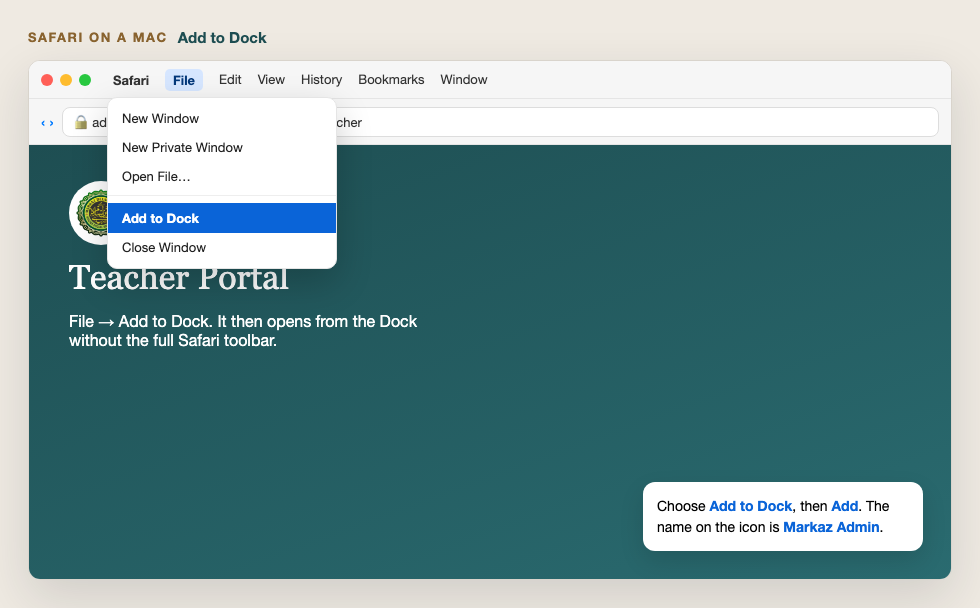
In the menu bar, choose File, then Add to Dock.
Click Add.
Open Markaz Admin from the Dock. It uses a simple window, without Safari’s full toolbar.
Figure 4. Safari on iPhone. Share, then Add to Home Screen. This picture is a guide of the menus.Figure 5. Safari on a Mac. File, then Add to Dock. This picture is a guide of the menus.
4. Open the web portal
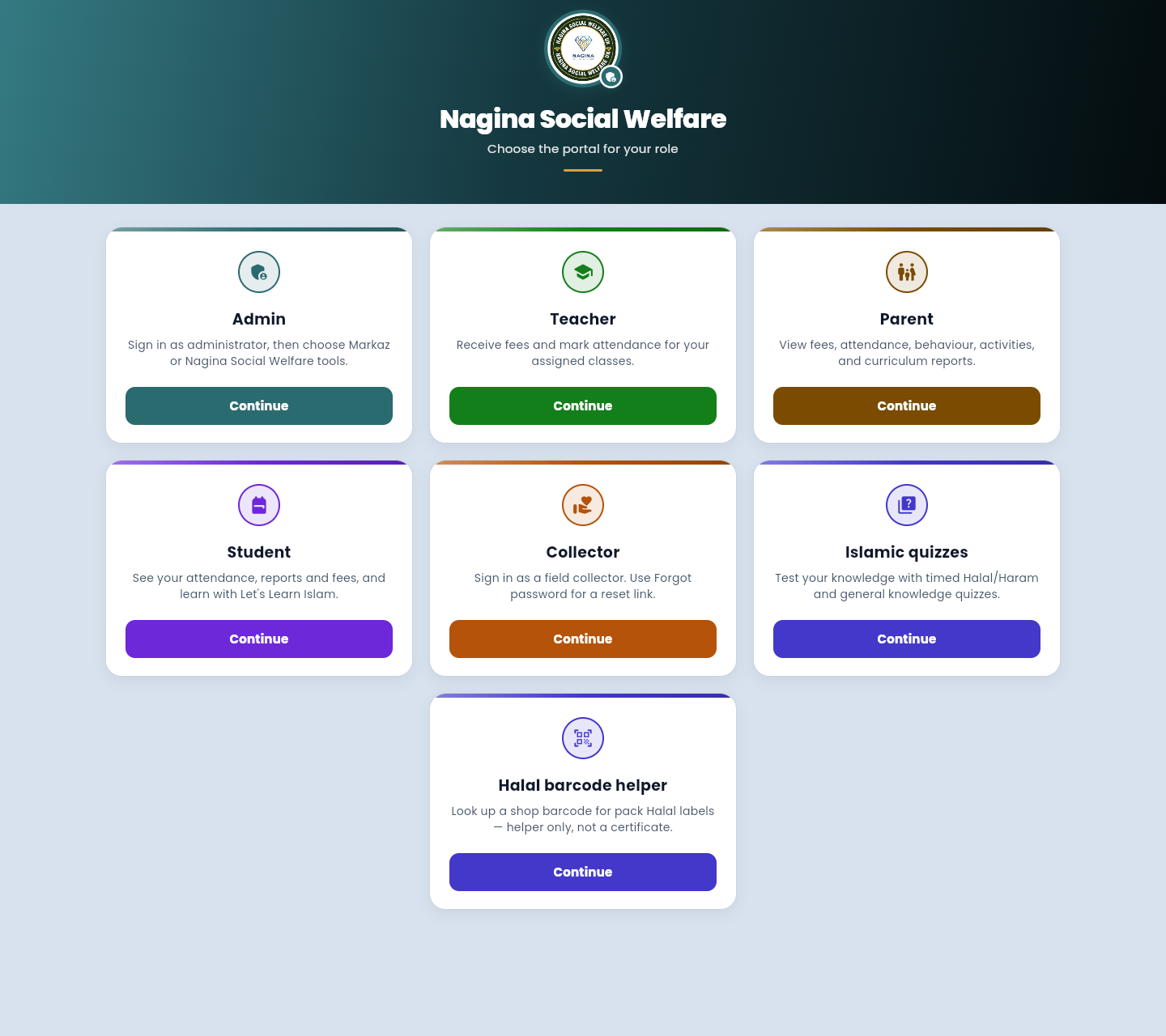
The first screen asks you to choose a role. Teachers use the green Teacher card. The other cards are for admins, parents, students, collectors, quizzes, and the Halal barcode helper.
Open https://admin.naginasocialwelfare.co.uk
On the Teacher card, press Continue.
You land on the Markaz Teacher sign-in page. You can also go straight there at /login/teacher.
Figure 6. Choose Teacher, then Continue.
5. Sign in
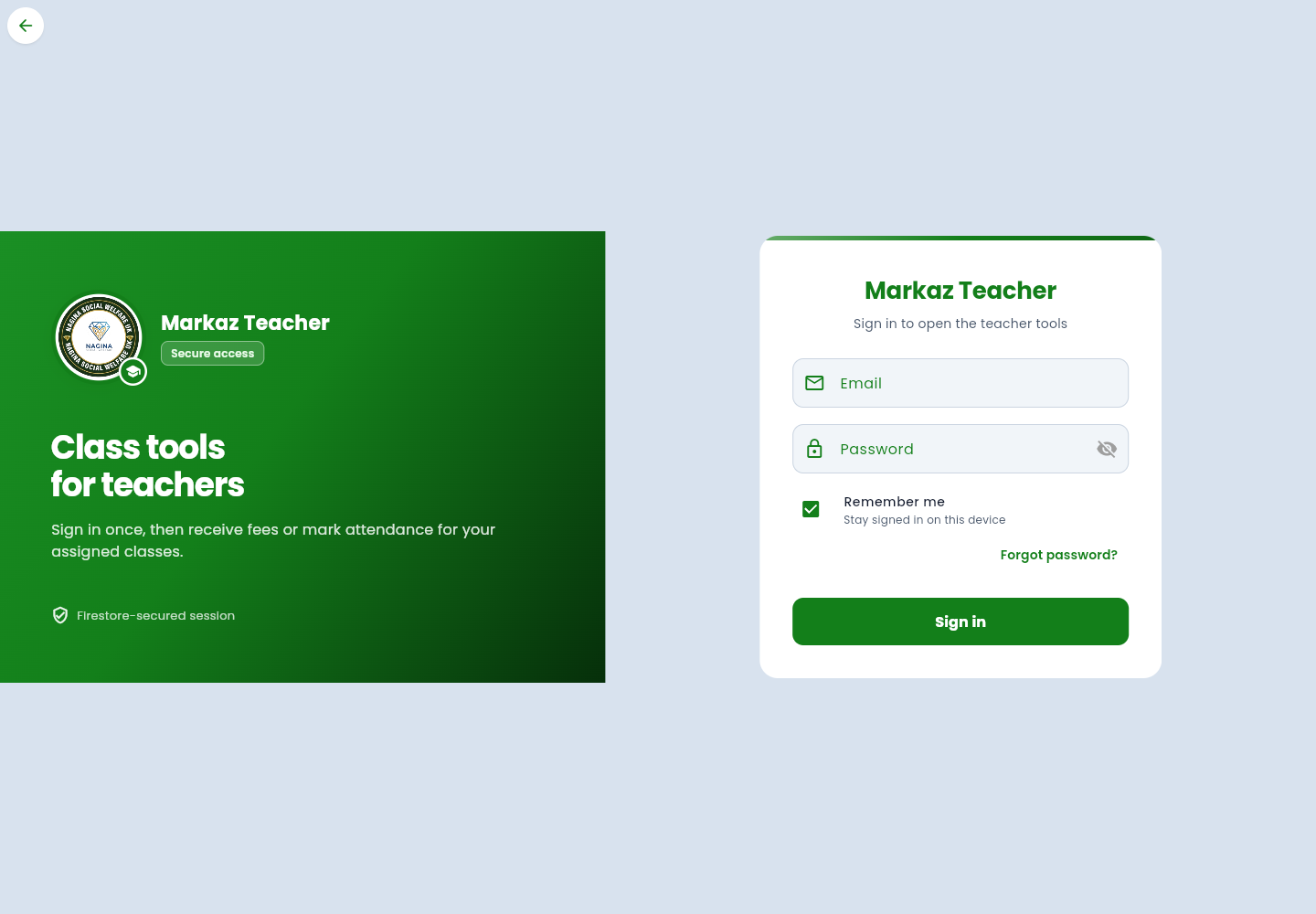
The sign-in card asks for email and password. Remember me keeps you signed in on this browser. Leave it unticked on a shared computer.
Type your email address.
Type your password. The eye icon shows or hides it.
Press Sign in.
The Dashboard opens, with your name in the welcome banner.
A wrong email or password shows an error. Check the email with the office before trying again and again.
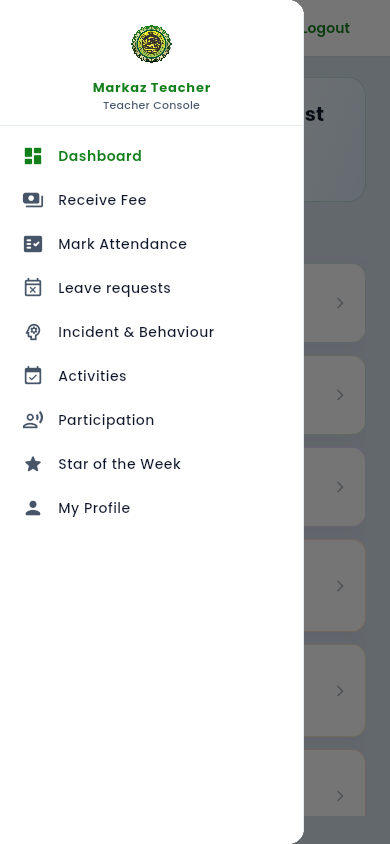
After you are in, the left menu is Dashboard, Receive Fee, Mark Attendance, Leave requests, Incident & Behaviour, Activities, Participation, Star of the Week, and My Profile. Logout is at the top right and ends the session on this browser.
Figure 7. Teacher sign-in. Use your email address.
Forgot password
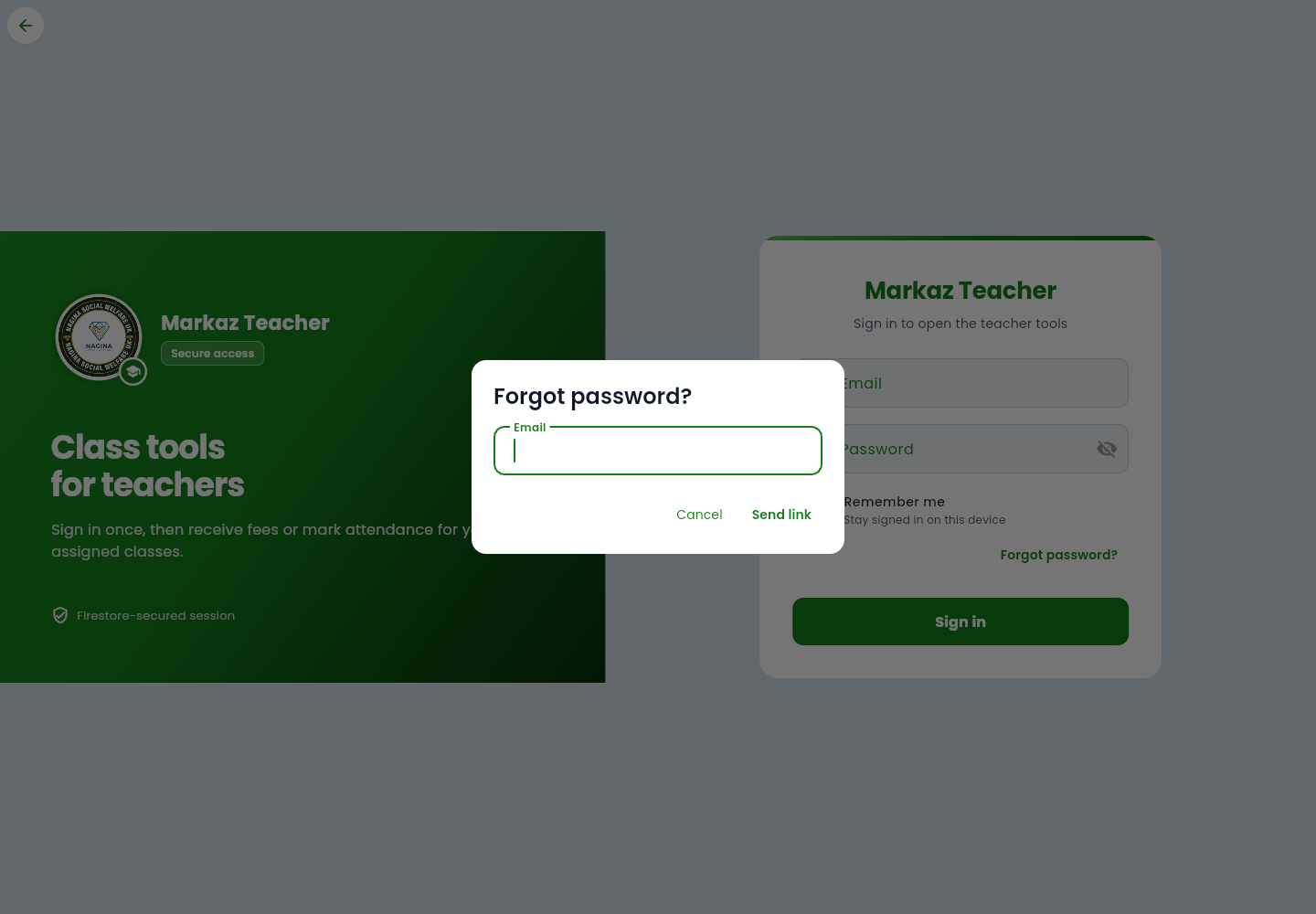
On the sign-in page, press Forgot password?. Enter the email on your teacher record, then Send link. Open the email and follow the link to choose a new password. Use Cancel if you opened the box by mistake.
Figure 8. Request a reset link.
First-time invite
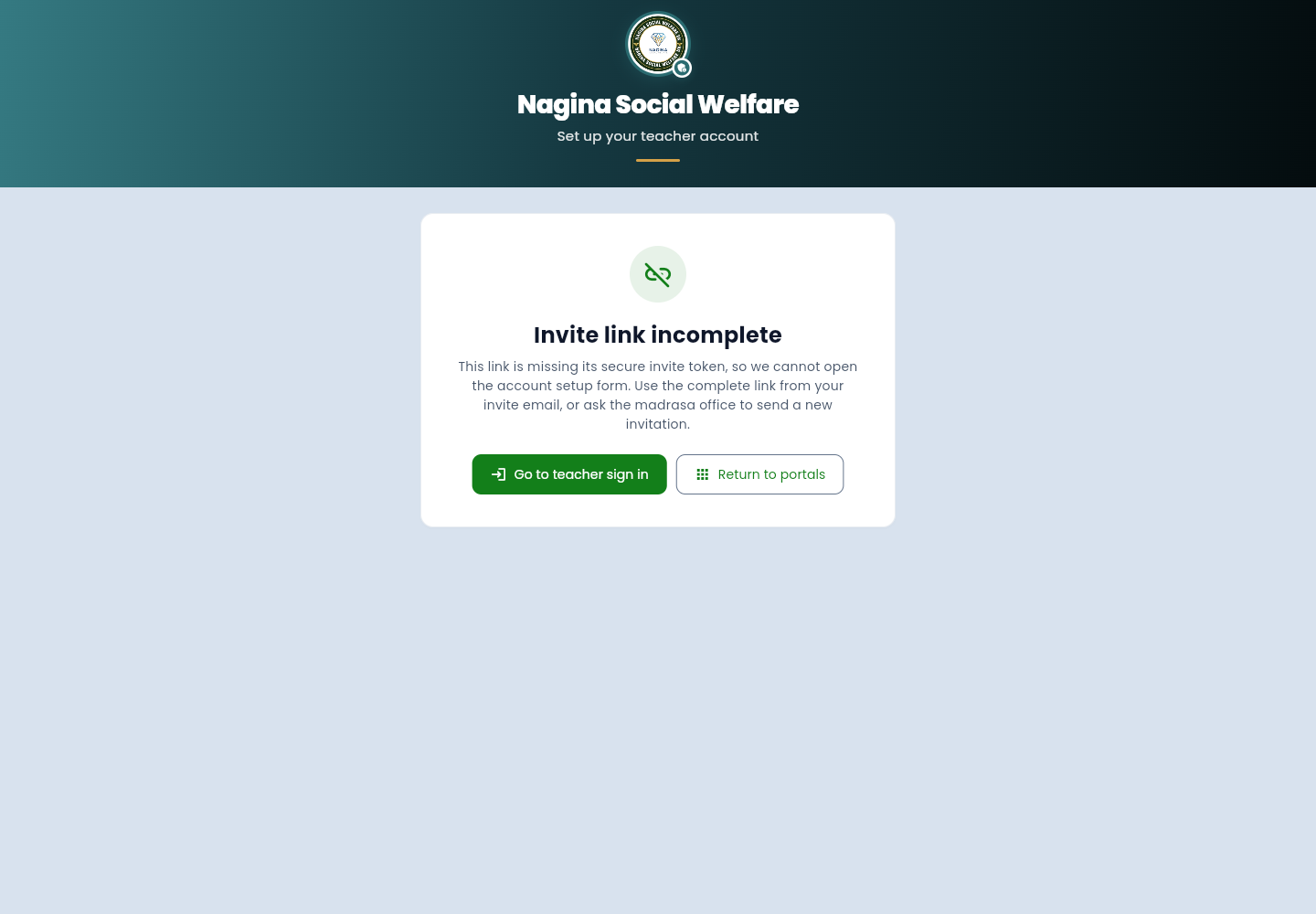
When the office creates your account, you receive an email with a setup link. Open that full link. It opens a page titled “Set up your teacher account,” where you choose a password. After that you go to the Dashboard.
If the link is incomplete, the page says Invite link incomplete. Use the whole link from the email, or ask the office to send a new invitation. Do not try to type the setup address yourself without the token.
Figure 9. This is what an incomplete invite link looks like. A real invite email opens the password form instead.
6. Dashboard
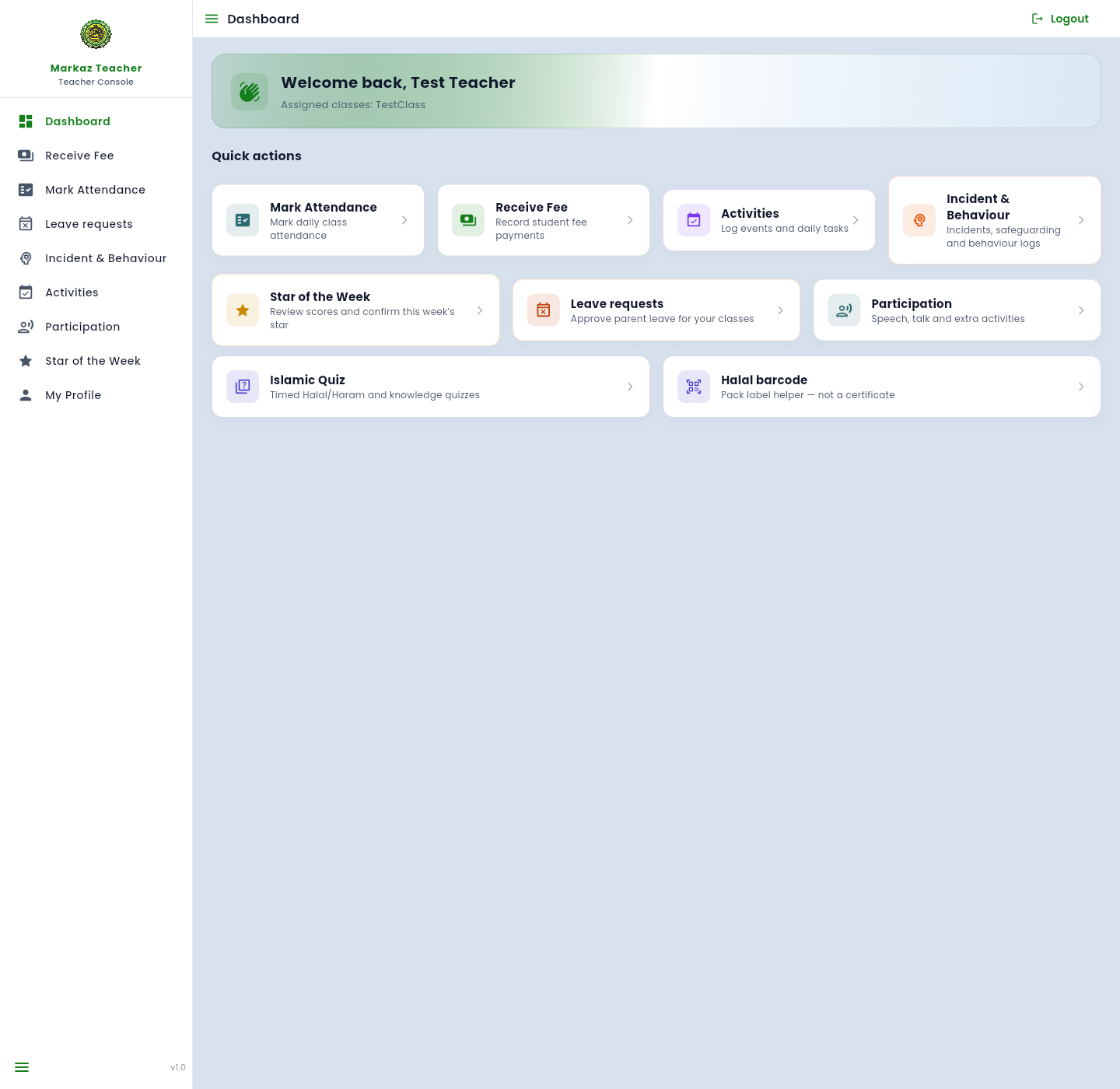
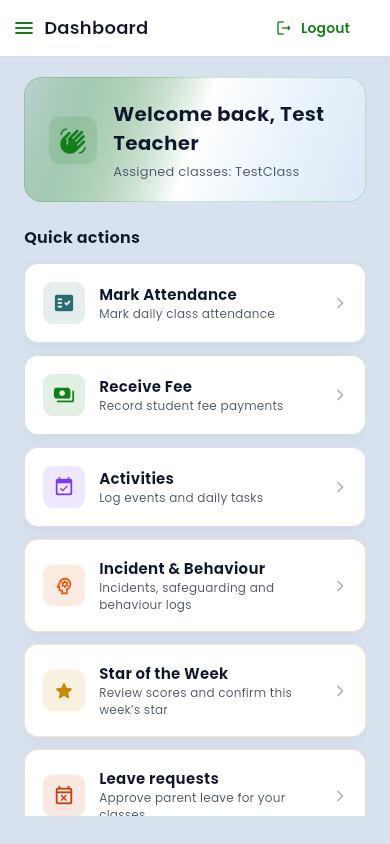
The Dashboard is the summary after you sign in. It shows your name, the classes assigned to you, and quick-action tiles into every tool.
Welcome banner. Your name and assigned classes (for example TestClass).
Quick actions. Mark Attendance, Receive Fee, Activities, Incident & Behaviour, Star of the Week, Leave requests, Participation, Islamic Quiz, and Halal barcode.
Islamic Quiz and Halal barcode open tools on the same portal. The quiz is timed practice. The barcode helper looks up a shop label. It is a helper, not a Halal certificate.
Figure 10. Dashboard after sign-in.
7. Receive Fee
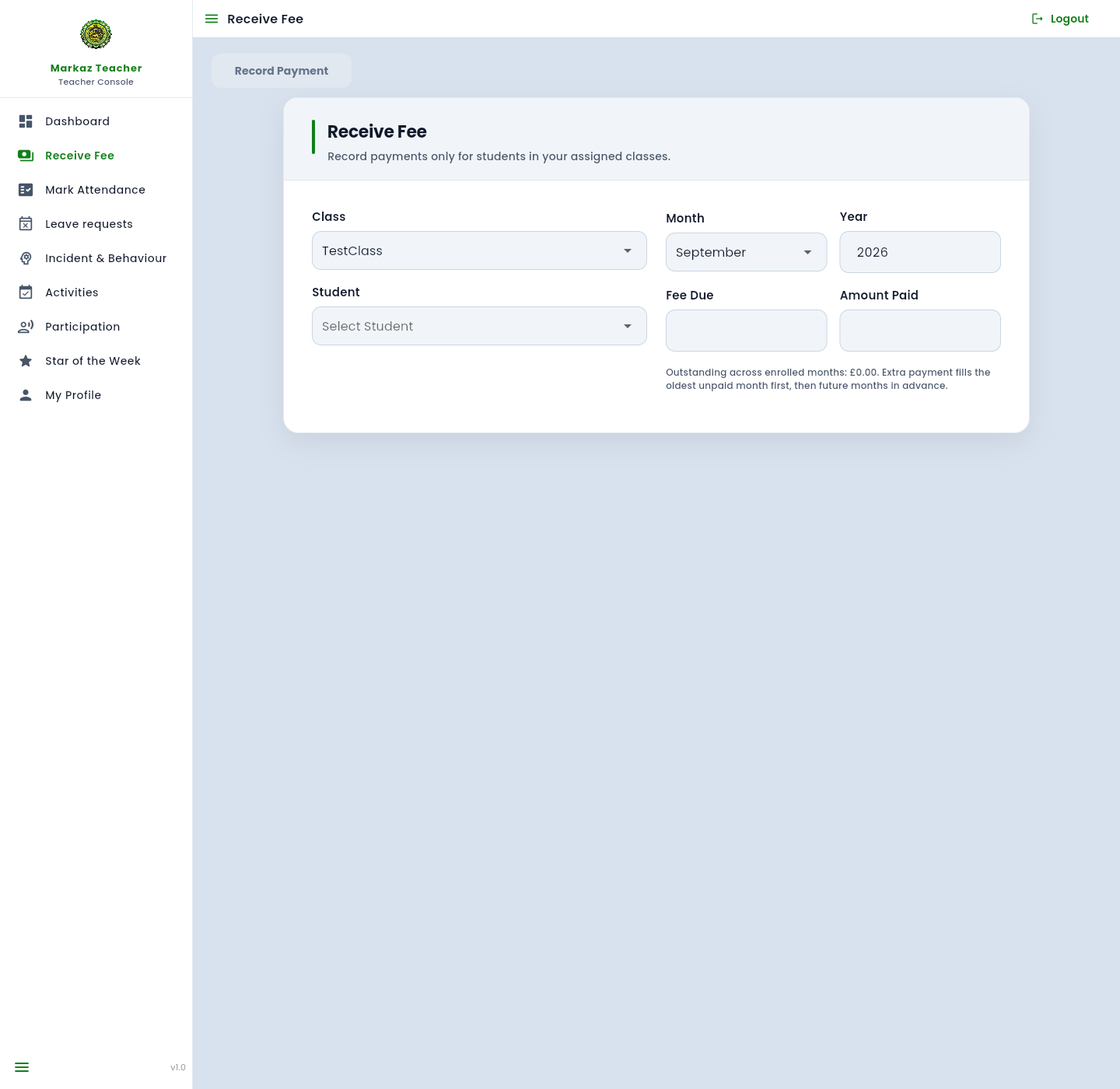
Receive Fee records a payment for a student in your assigned classes. You choose the class, month, and year, then the student, and enter the amount paid.
Open Receive Fee in the left menu, or the Receive Fee tile on the Dashboard.
Set Class, Month, and Year.
Select the student. The page shows outstanding fees across enrolled months.
Enter the amount paid. Extra payment fills the oldest unpaid month first, then future months in advance.
Press Record Payment only when you are ready to save. Cancel or leave the page if you opened it by mistake.
The picture below was not used to save a payment.
Figure 11. Receive Fee.
8. Mark Attendance
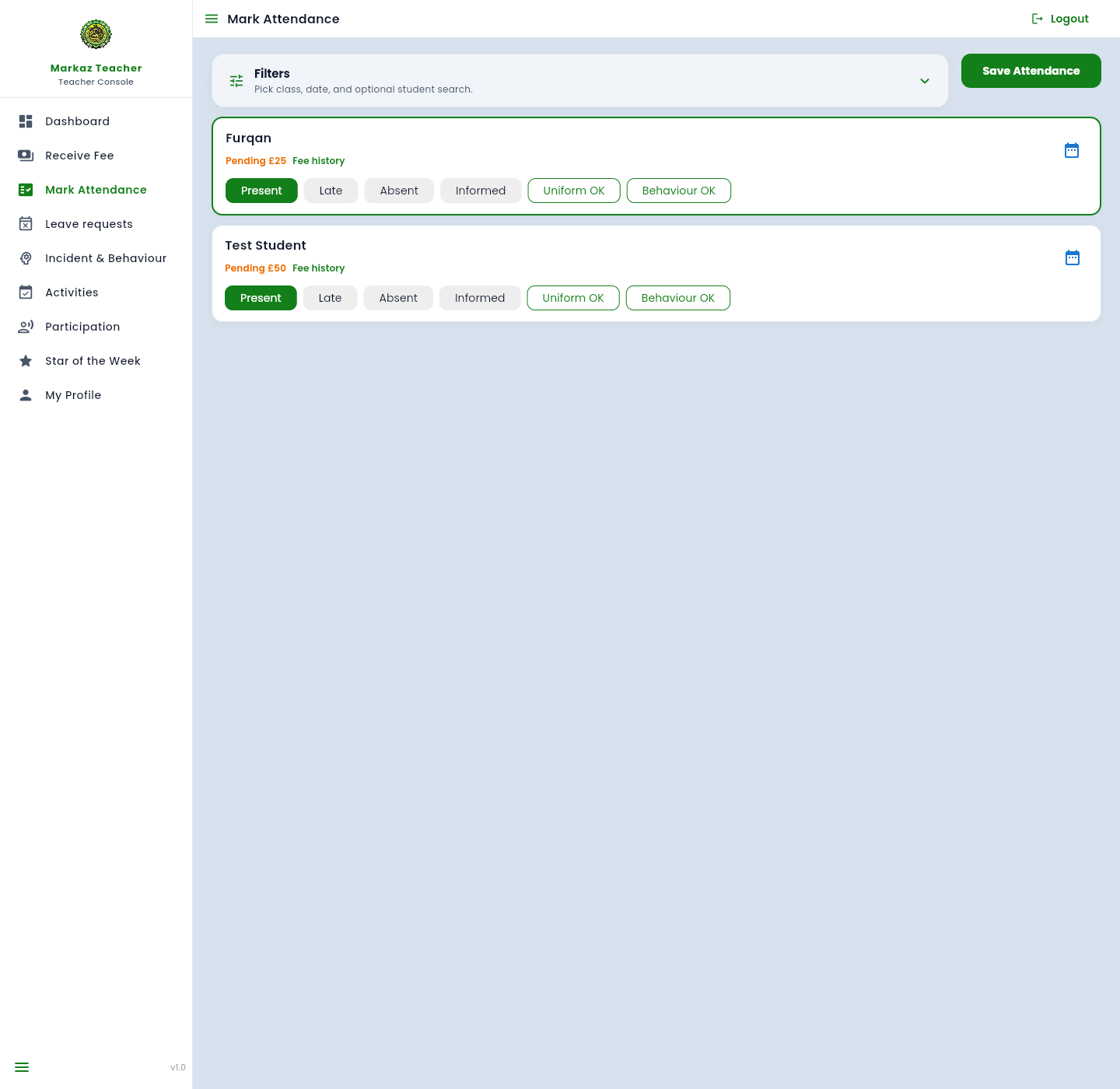
Mark Attendance is the daily register for your class. Open Filters to pick the class, date, and an optional student search.
Open Mark Attendance.
Expand Filters if you need a different class or date.
For each student, choose Present, Late, Absent, or Informed.
Use Uniform OK and Behaviour OK when those checks apply for the day.
Fee history and planned absence shortcuts sit on each student row when available.
Press Save Attendance only when the register is ready. Leaving without Save keeps the previous marks.
The picture shows Furqan and Test Student. Nothing was saved while taking it.
Figure 12. Mark Attendance.
9. Leave requests
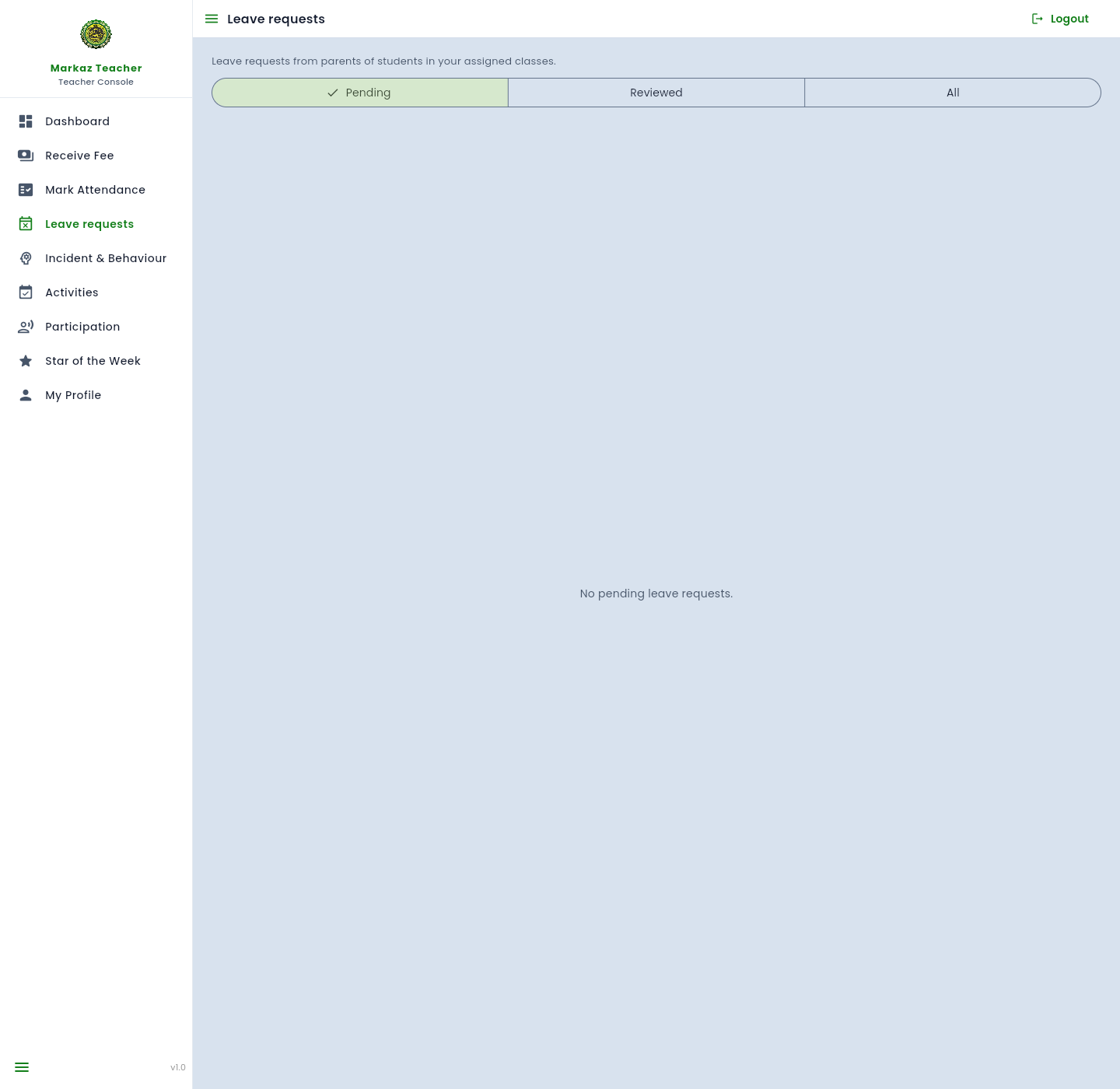
Leave requests are submitted by parents for students in your classes. You review them here.
Open Leave requests. A badge on the menu shows how many are pending.
Switch between Pending, Reviewed, and All.
Open a request to read the dates and reason.
Approve or reject it. The parent is notified by email and in their Messages inbox.
This account has no pending leave, so the page says “No pending leave requests.”
Figure 13. Leave requests.
10. Incident & Behaviour
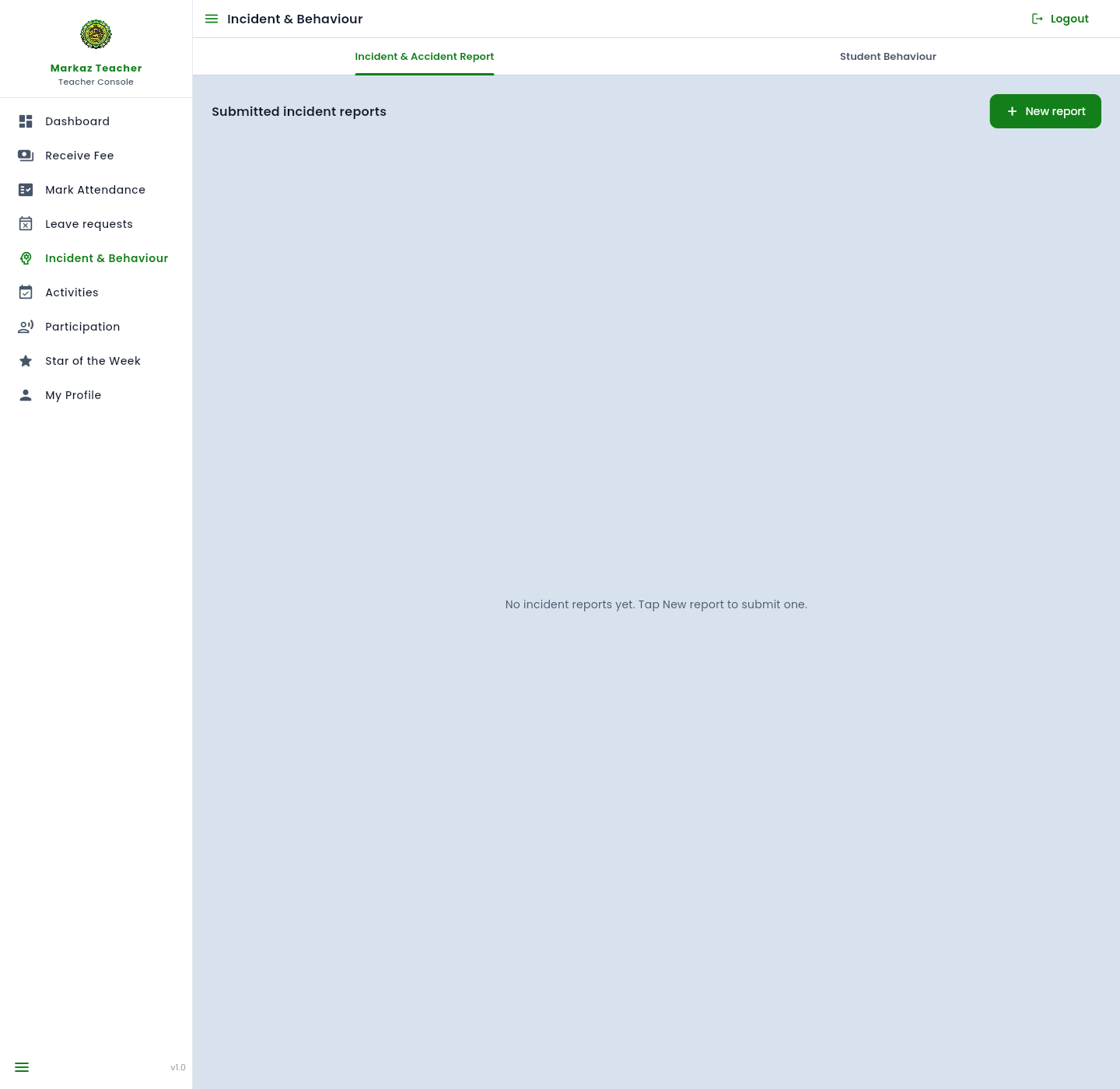
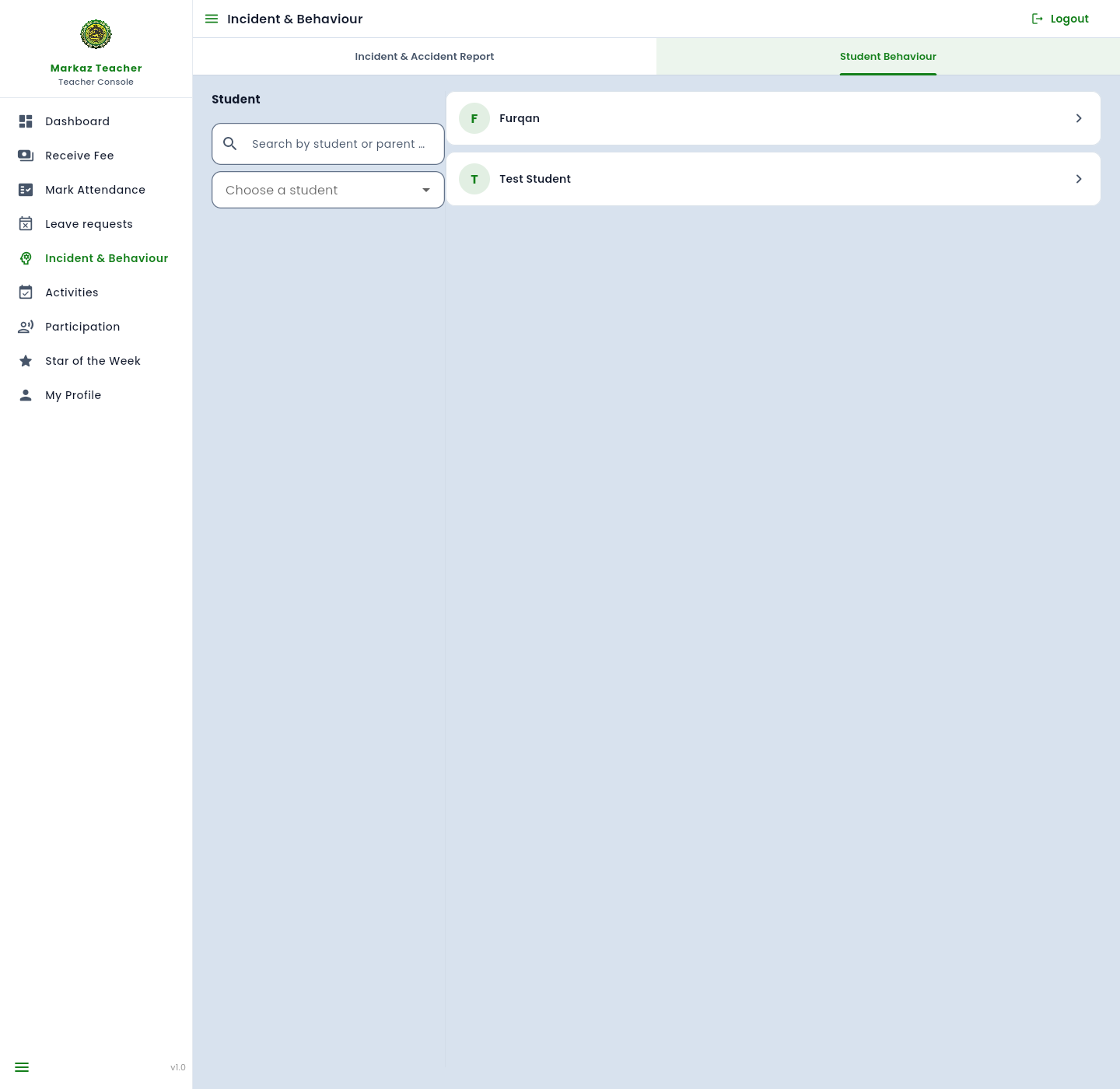
This page has two tabs: Incident & Accident Report, and Student Behaviour.
Incident & Accident Report
Use this for safeguarding and accident reports. Submitted reports appear in the list. Press New report to open the form. Fill every required field, then submit only when the report is complete. Cancel if you opened the form by mistake.
Figure 14. Incident & Accident Report.
Student Behaviour
Student Behaviour is the daily behaviour log and term rating for a student. Choose a student from the list, then add a daily log or a term rating. Search by student or parent name when the class list is long.
Figure 15. Student Behaviour. Choose a student to open their log.
11. Activities
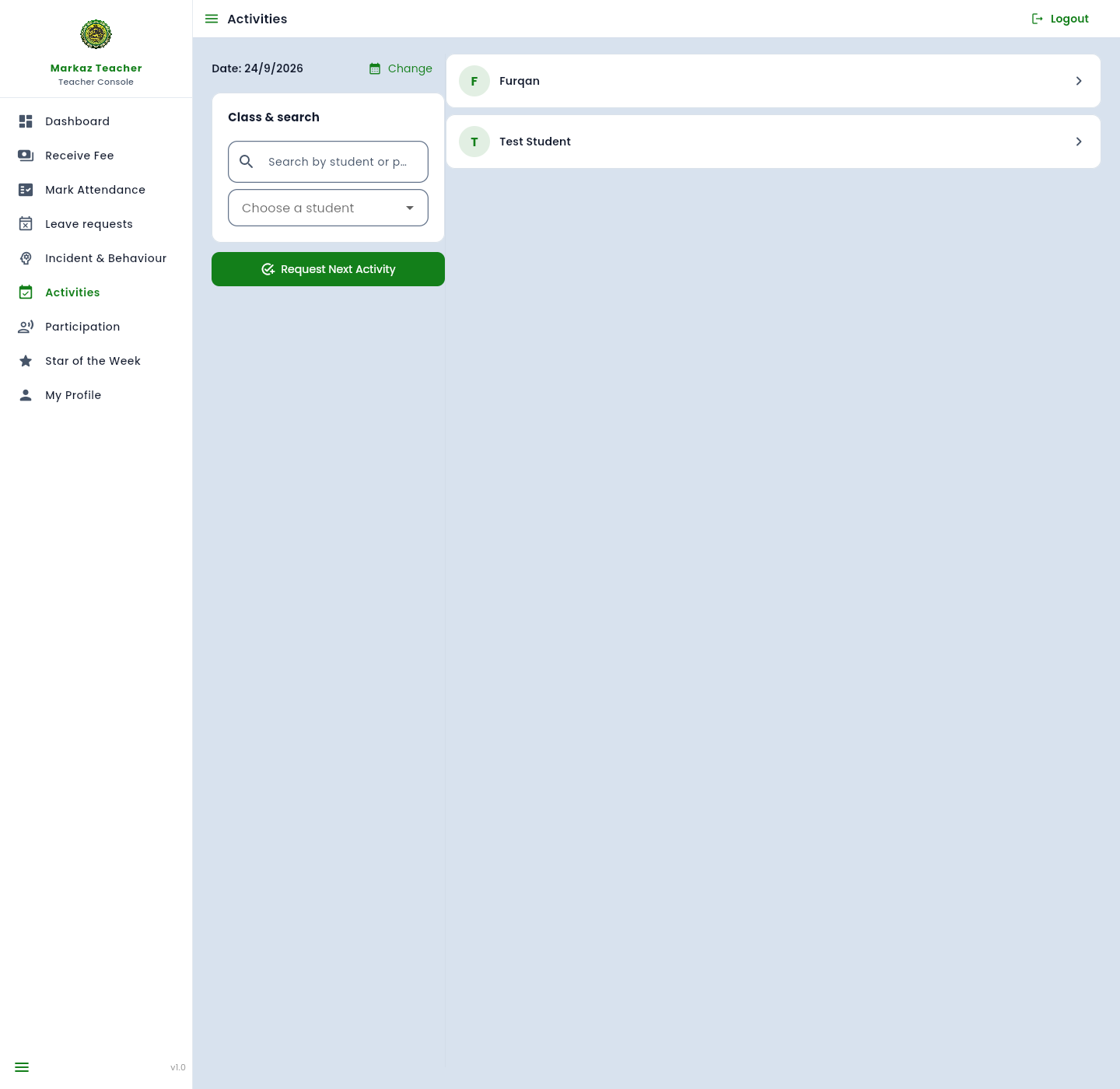
Activities records daily curriculum marks for Qaida, Quran, Surah Memorization, Duas, and Islamic Education. Pick the date and the student, then mark each assigned activity. Request Next Activity asks the office for the next curriculum item when the current set is done.
You only see students in your classes. Marks you save here appear later on the parent Learning page.
Figure 16. Activities. Choose a student before marking.
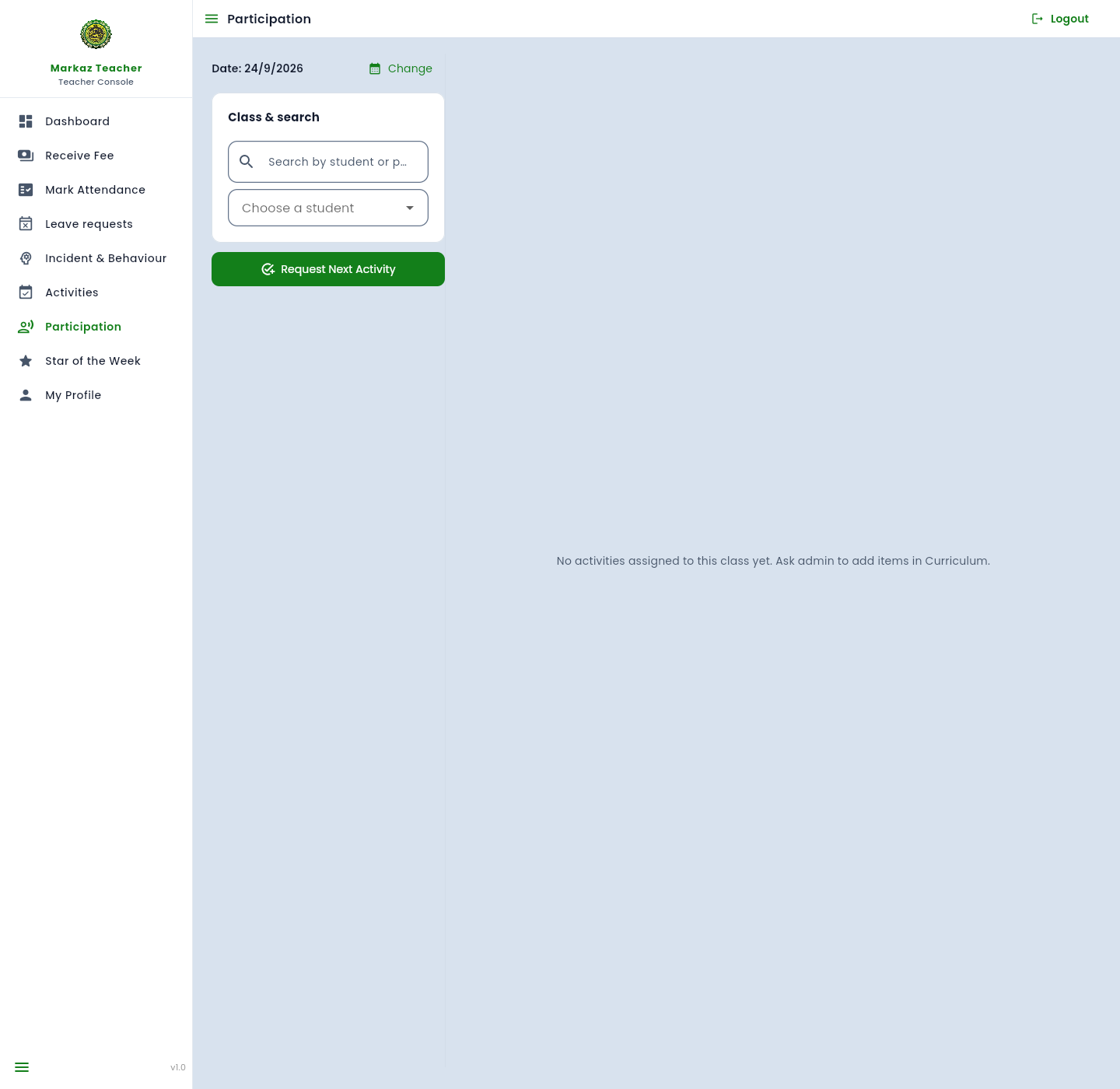
12. Participation
Participation is for speech, talk, and extra activities. It works like Activities: choose the date and student, then mark participation items the office has assigned to the class.
If the class has no participation items yet, the page says so and asks you to wait for admin to add them in Curriculum.
Figure 17. Participation.
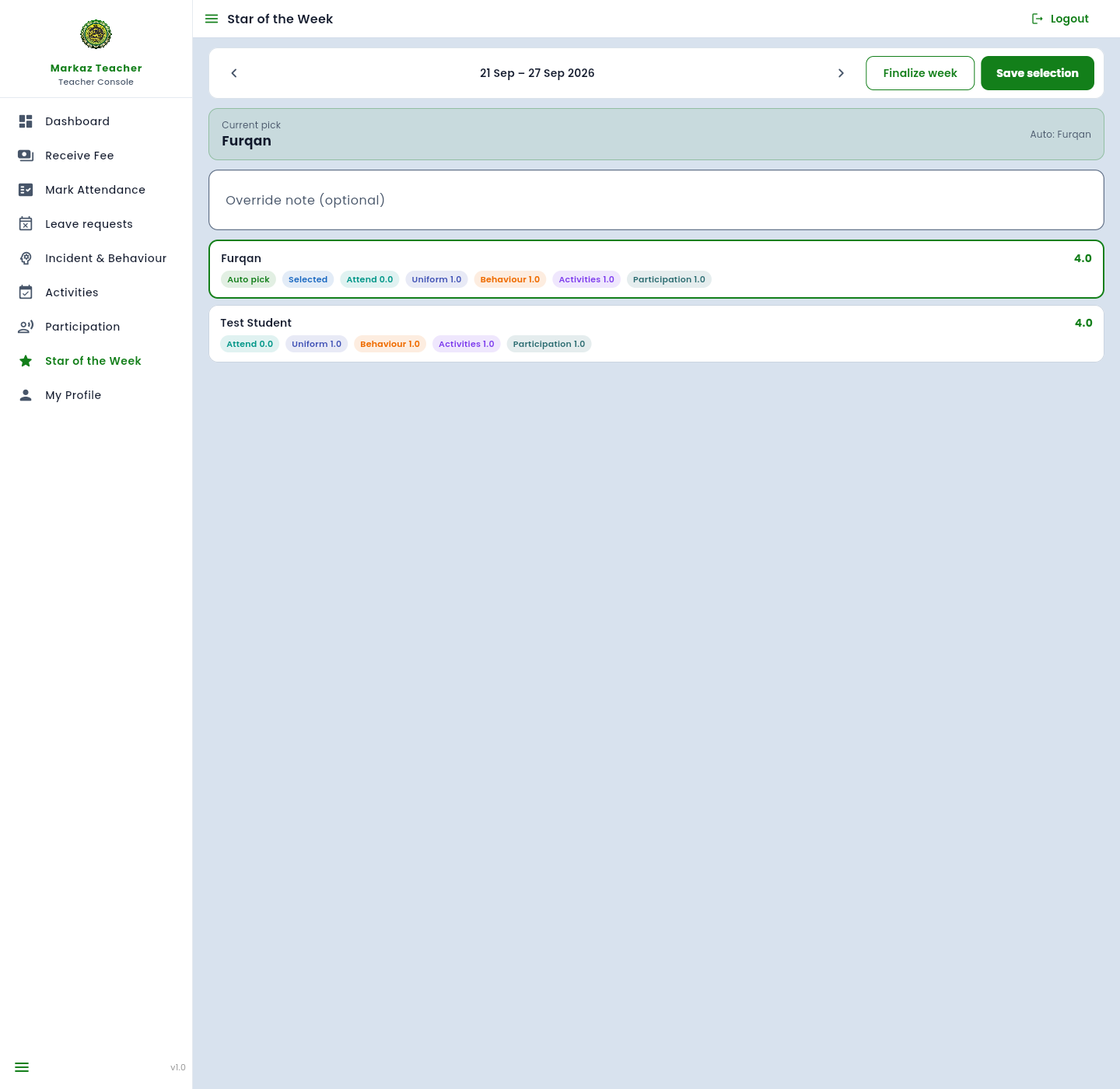
13. Star of the Week
Star of the Week scores students for the week on attendance, uniform, behaviour, activities, and participation. The portal suggests an automatic pick. You can keep that pick or choose another student, add an optional override note, then save.
Open Star of the Week.
Use Previous week or Next week to move the date range.
Review the scores and the current pick.
Press Save selection when you are happy with the star, or Finalize week when the week is closed. Do not finalize while only reviewing.
Figure 18. Star of the Week.
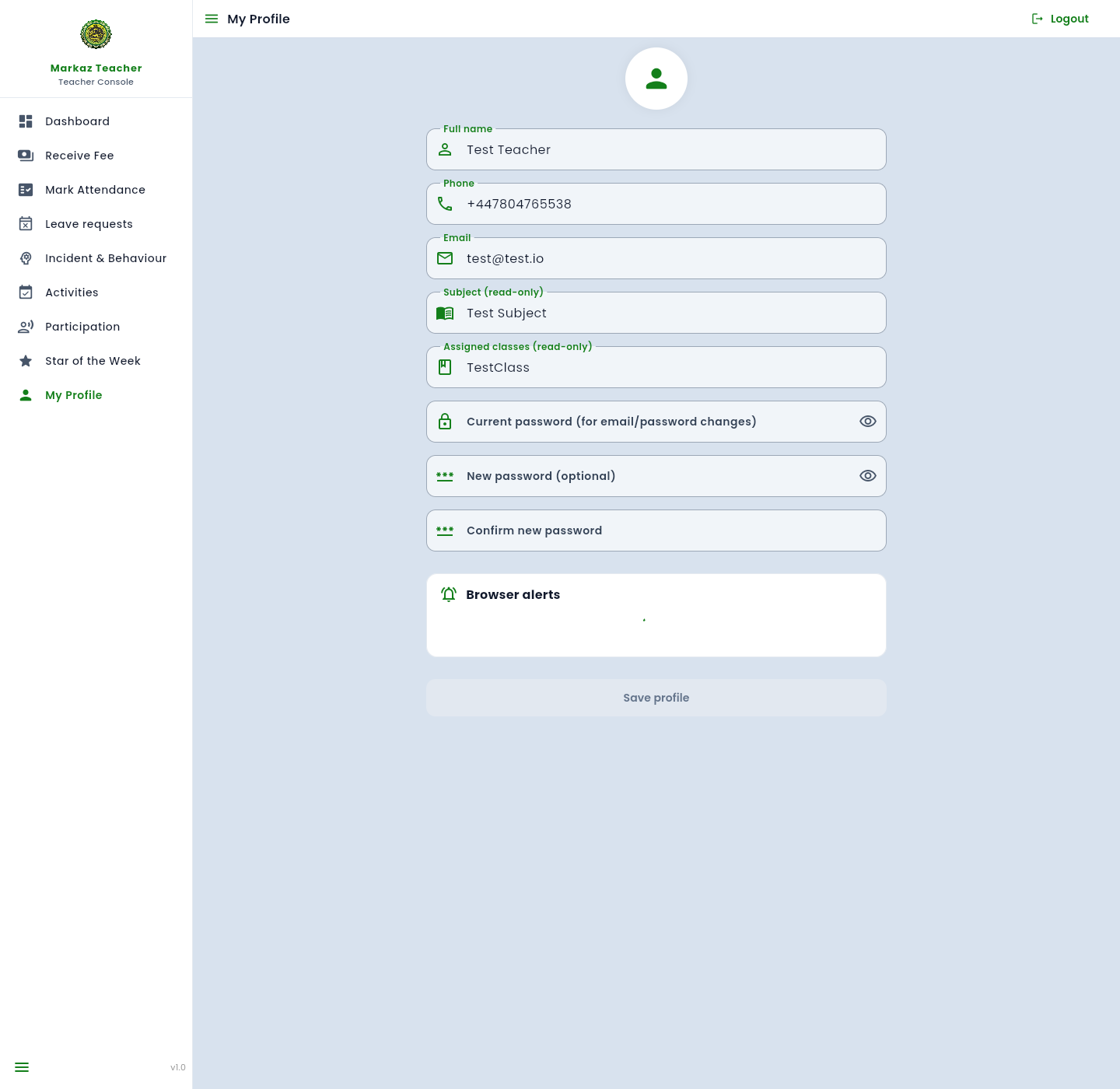
14. My Profile
My Profile is where you edit your own details. Subject and assigned classes are read-only; the office changes those.
Update full name, phone, or email if they are wrong.
To change the email or the password, type your current password as well. A new password is optional. If you set one, confirm it.
Press Save profile only when you intend to keep the changes.
Browser alerts asks this browser for permission to show a notification. Leave it off if you prefer email only.
Figure 19. My Profile.
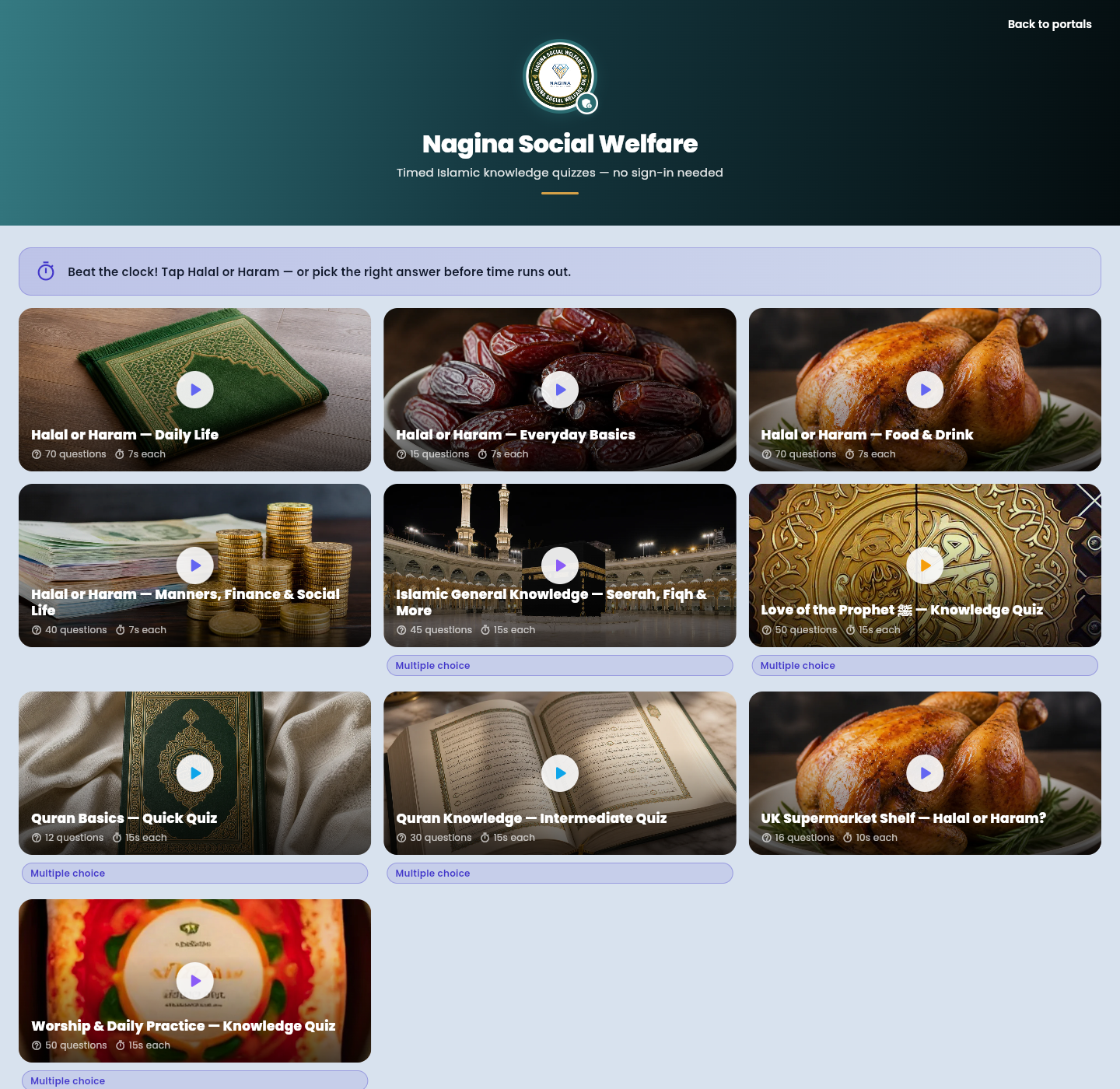
15. Islamic Quiz
From the Dashboard, Islamic Quiz opens the timed quiz hub. No separate teacher sign-in is needed on that page. Choose a Halal/Haram set or a knowledge quiz and play. Closing the quiz returns you to the portals.
Figure 20. Islamic Quiz hub.
16. Halal barcode
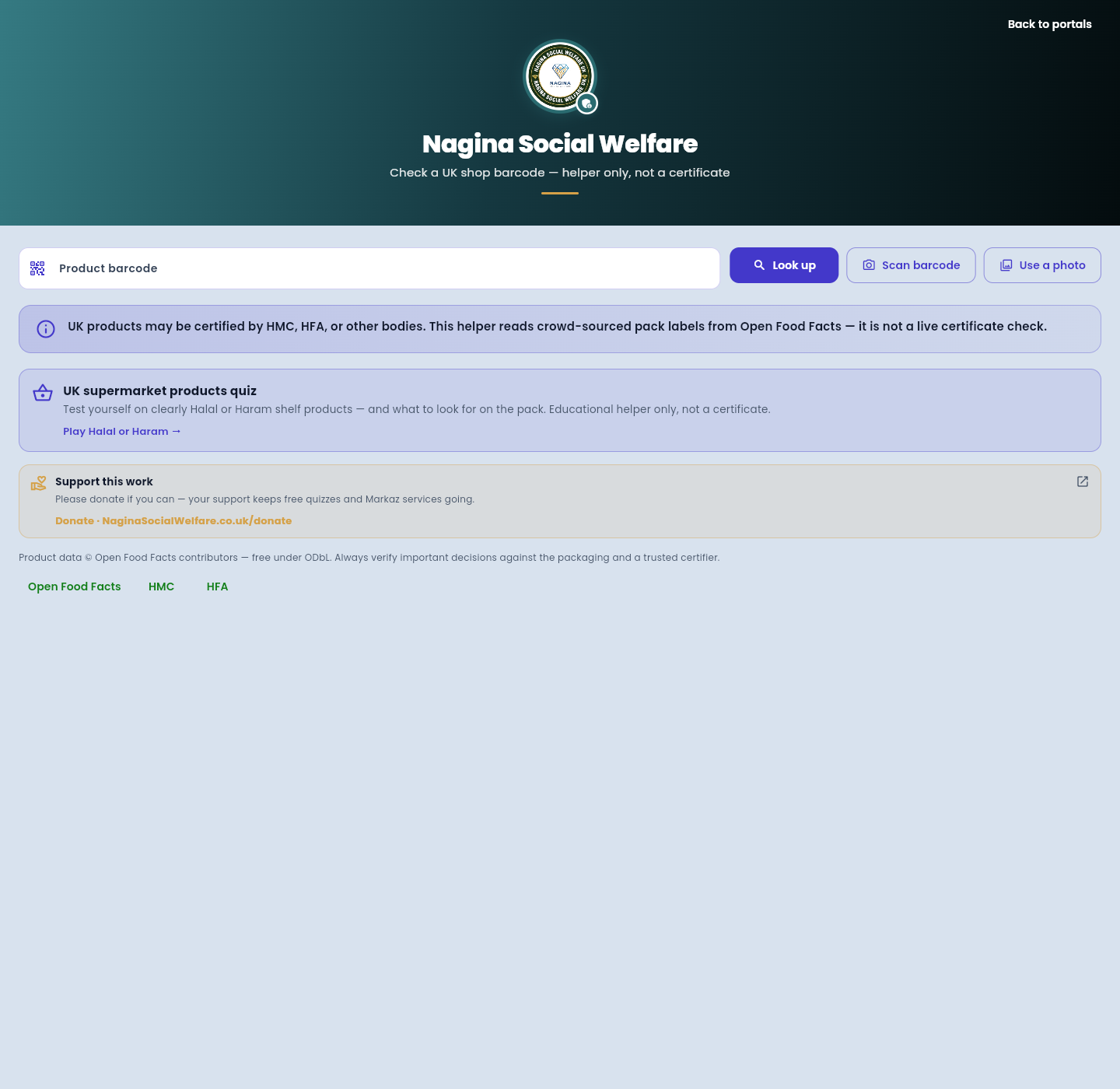
Halal barcode looks up a UK shop product from its barcode or a photo of the pack. It reads crowd-sourced pack labels. It is a helper for teaching and checking labels. It is not a Halal certificate and does not replace HMC, HFA, or other certification bodies.
Figure 21. Halal barcode helper.
17. On a phone
On a narrow screen the left menu becomes a drawer. Tap Menu at the top left to open it. The same pages are there. Cards and buttons stack so you do not have to slide sideways. Logout stays at the top right.
Figure 22. Dashboard on a phone.Figure 23. The Menu drawer on a phone.
18. What you can do
You can
The office does this
Install the Android app, or pin the teacher web portal on iPhone, Android, or a computer
Issue your email. The iPhone app is still to come
See only students in your assigned classes
Assign classes to your teacher account
Mark attendance and record fee payments for those students
Set fee amounts and class lists
Approve or reject parent leave for your classes
Parents submit the leave request
Submit incident reports and write behaviour logs
Review safeguarding follow-up when needed
Mark activities and participation
Add curriculum items for the class
Choose and finalize Star of the Week
Hold the weekly record for the madrasa
Update your name, phone, email, and password
Change your subject or assigned classes
Open Islamic Quiz and the Halal barcode helper
Publish quiz packs and keep the helper available
If a page looks old. After the teacher web portal is updated, refresh the browser. On a phone, close the tab and open https://admin.naginasocialwelfare.co.uk again. If you pinned the portal as an app, open that icon once more after the refresh.