Markaz Deen-e-Islam Nagina Social Welfare UK

Nagina Social Welfare UK

Parent Portal
User Manual

How to use the MDI Parent Portal Android app and the parent web portal: sign in, read messages, check and pay fees, follow your child’s attendance, daily checklist and learning, request leave, and keep your own details up to date.

3 October 2026 Web portal version 1.0 Android app version 1.0.1

1. Before you begin

There are two ways to follow your child at Markaz Deen-e-Islam: the MDI Parent Portal app on an Android phone, or the parent web portal in any browser. Both show the same information, and you sign in to both with the same username and password. You only see children the madrasa has linked to your account.

Sign in with the username the office gave you, not your email address. The password is the one you chose from the invite email, or the one you set after a reset. There is no public registration.

About these pictures. They were taken on 3 October 2026, signed in as Test Father (username teststudent.father), who is linked to Test Student in TestClass. The fee for October is £25.00, and nothing has been paid yet. There are no messages or attendance marks yet, and there is one test note under Madrasa life. Web portal pictures were taken in Chrome. App pictures were taken from the Android app. The Chrome and Safari pictures are guides to the menus you will see.

This manual online: https://www.naginasocialwelfare.co.uk/parent-portal-manual/

2. Get the app

Android · available now

MDI Parent Portal

On an Android phone or tablet, install MDI Parent Portal from Google Play. It is published by Nagina Developer for Nagina Social Welfare UK. The office gives you the username. You cannot create an account from the store page.

Open the Play Store page
  1. On the phone, open the Play Store link above, or search Google Play for MDI Parent Portal.
  2. Check the Markaz crest and the name Nagina Developer, then tap Install.
  3. Open the app and sign in with the username and password the office gave you. Chapter 3 shows each screen.

Support for the app is info@naginasocialwelfare.co.uk.

iPhone · coming soon

App Store version

A native iPhone app is on the way. It is not on the App Store yet, so there is nothing to download from Apple.

Until then, open the parent web portal in Safari and add it to your Home Screen (chapter 4). It then opens from an icon, the same way an app does, and you sign in with the same username.
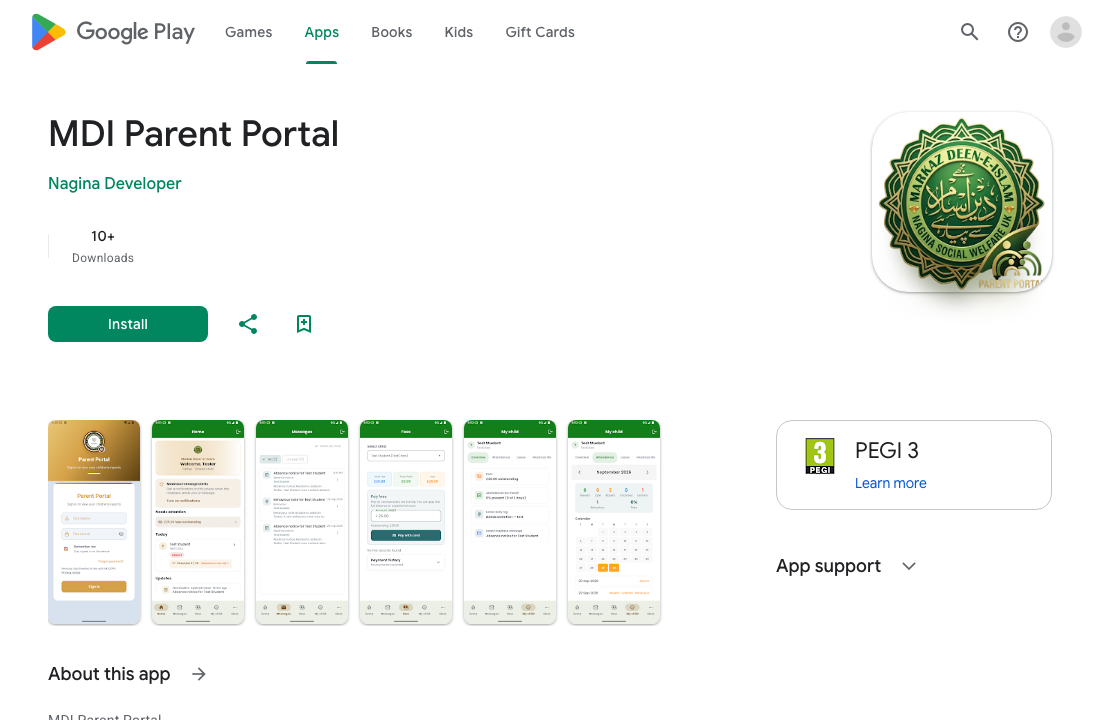
Google Play listing for MDI Parent Portal by Nagina Developer, with the Markaz crest, an Install button, and app screenshots.
Figure 1. The Android app on Google Play. Tap Install, then sign in with the username from the office.

3. Using the Android app

The app has the same pages as the parent web portal, arranged for a phone. A bar along the bottom holds Home, Messages, Fees, My child, and More. The sign-out icon is at the top right of every page.

Sign in

  1. Open MDI Parent Portal from the home screen.
  2. Type your username and password. The eye icon shows or hides the password.
  3. Remember me is ticked already. Leave it ticked on your own phone, and the app opens straight to Home next time, even without signal. Untick it on a shared phone, and the app asks for the password at the next start.
  4. Tap Sign in. Forgot password? sends the same reset link as the web portal.

Home and notifications

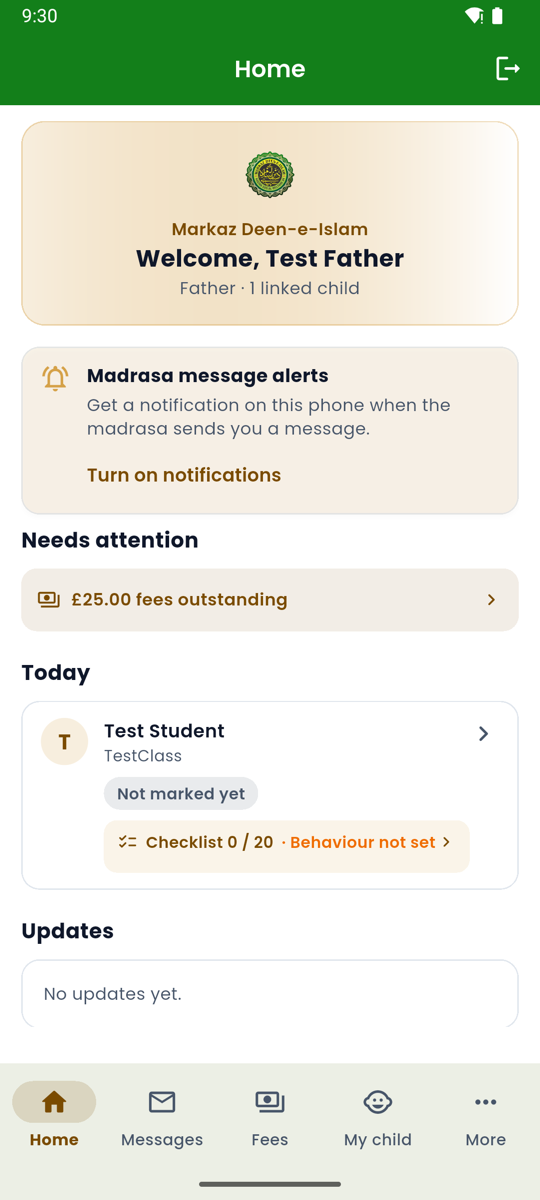
Home has a welcome card with your linked children, then Needs attention (for example unread messages or fees outstanding), Today (each child’s register and daily checklist for today), and Updates from the madrasa. Tap any item to open the page behind it.

The Madrasa message alerts card asks to send notifications. Tap Turn on notifications and allow them, so a new madrasa message arrives on the phone like a text. Email and the Messages page still work if you leave them off.
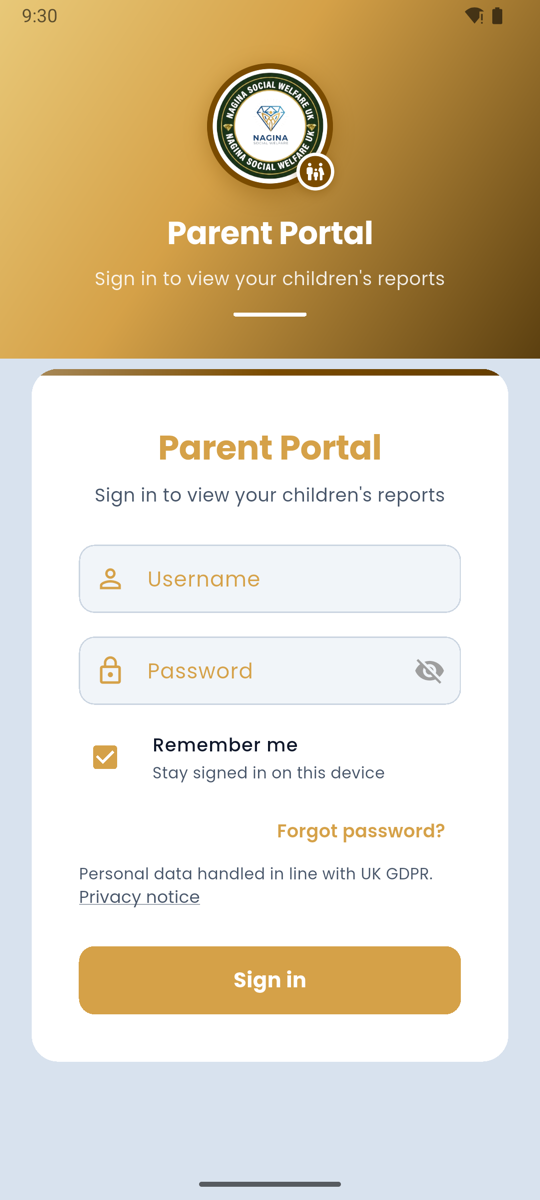
Android app sign-in screen with username, password, Remember me ticked, Forgot password, and Sign in.
Figure 2. Sign in to the app.
Android app Home with the welcome card, Madrasa message alerts, £25.00 fees outstanding, Test Student’s day, and Updates.
Figure 3. App Home.

Messages, Fees, and My child

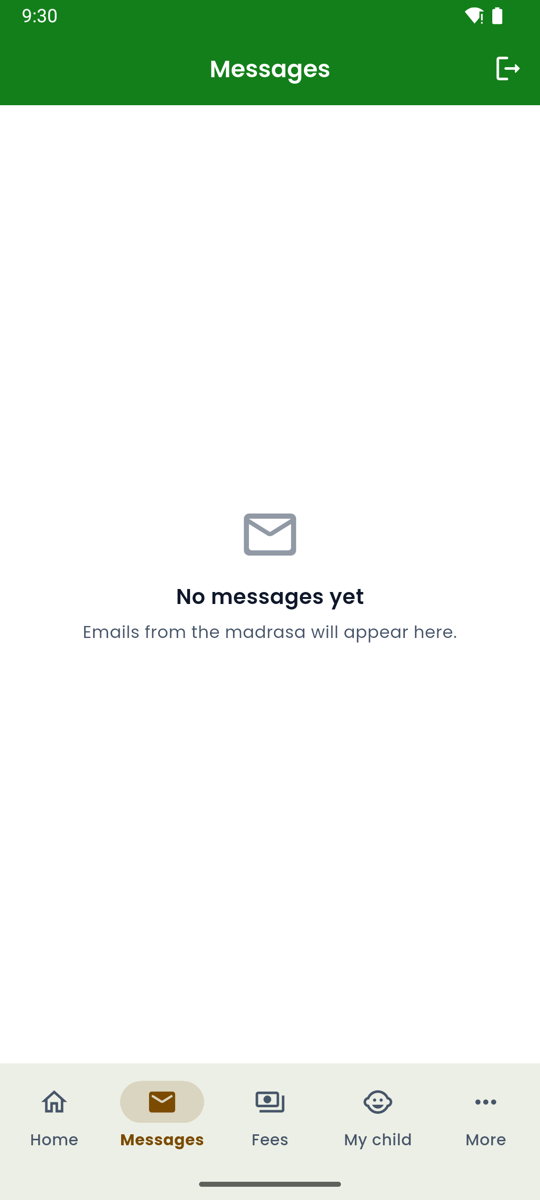
  • Messages is every notice and email the madrasa has sent you. Open a message to read it. Chapter 8 explains it in full.
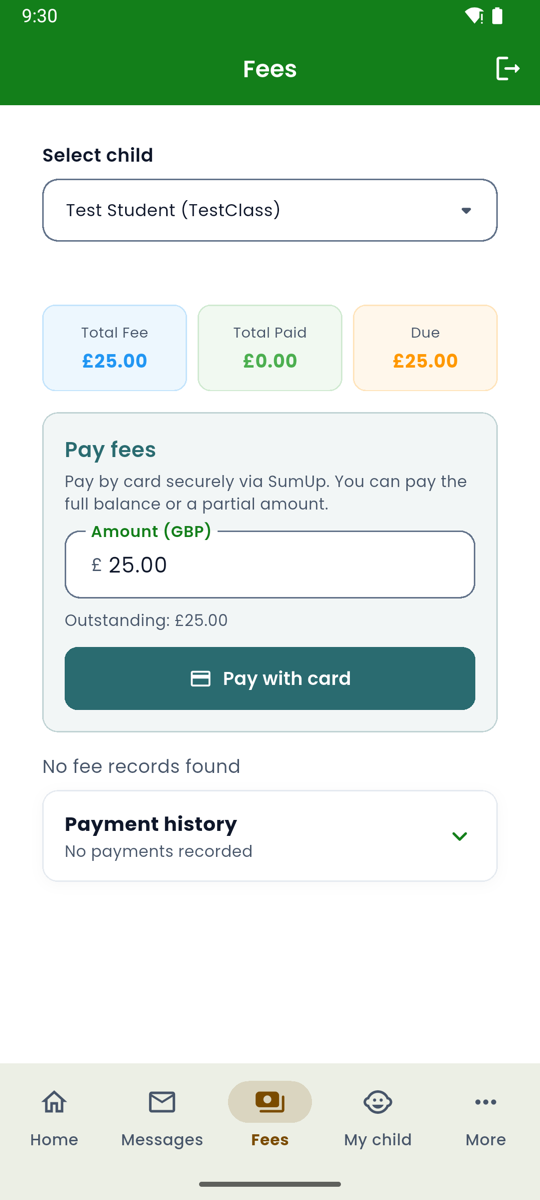
  • Fees shows Total Fee, Total Paid, and Due for the selected child, with Pay with card when something is due, and the payment history (chapter 9).
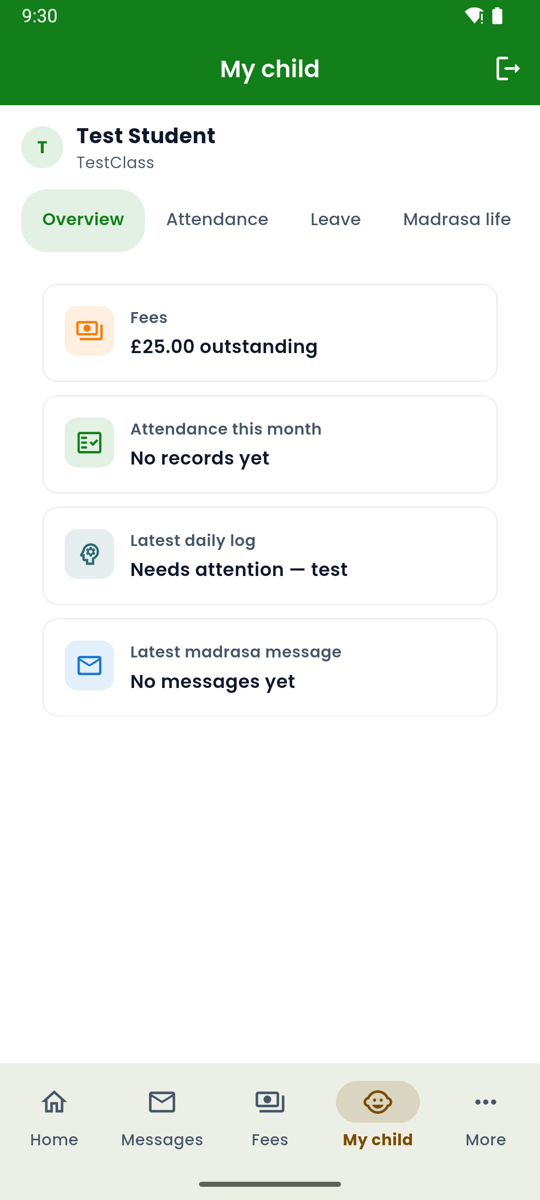
  • My child has the same tabs as the web portal: Overview, Attendance, Leave, Madrasa life, Learning, Term report, Daily checklist, and Let’s Learn Islam. Slide the tab row sideways to reach the later tabs (chapter 10).
Android app Messages page, empty: emails from the madrasa will appear here.
Figure 4. Messages.
Android app Fees for Test Student: £25.00 total, £0.00 paid, £25.00 due, and a Pay with card button.
Figure 5. Fees.
Android app My child overview for Test Student with fees, attendance, latest daily log, and latest message cards.
Figure 6. My child.
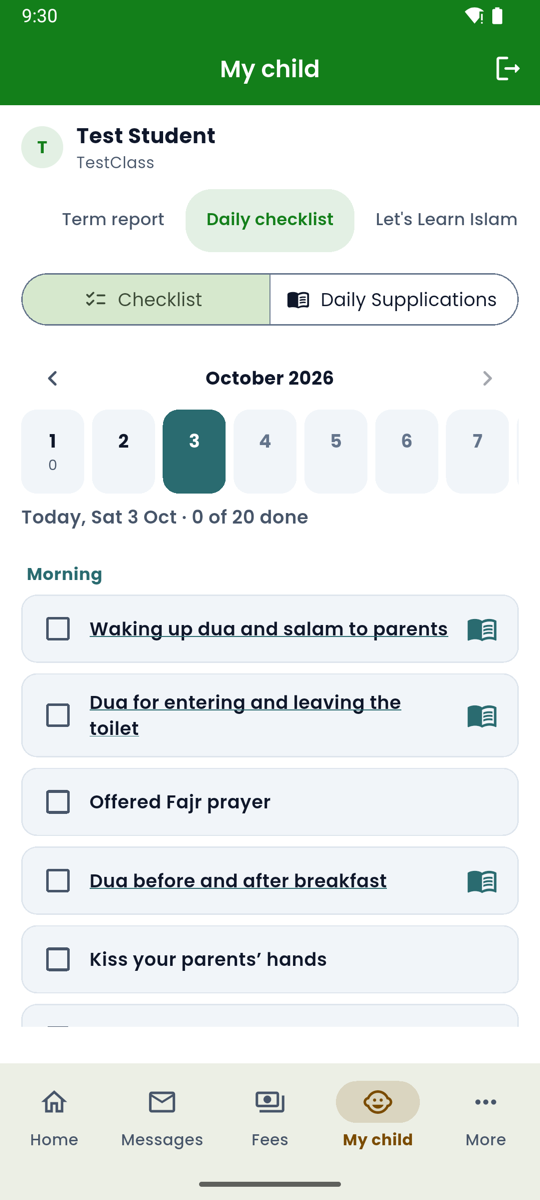
Android app Daily checklist tab for Saturday 3 October with the morning items and Daily Supplications.
Figure 7. Daily checklist.

More and My Profile

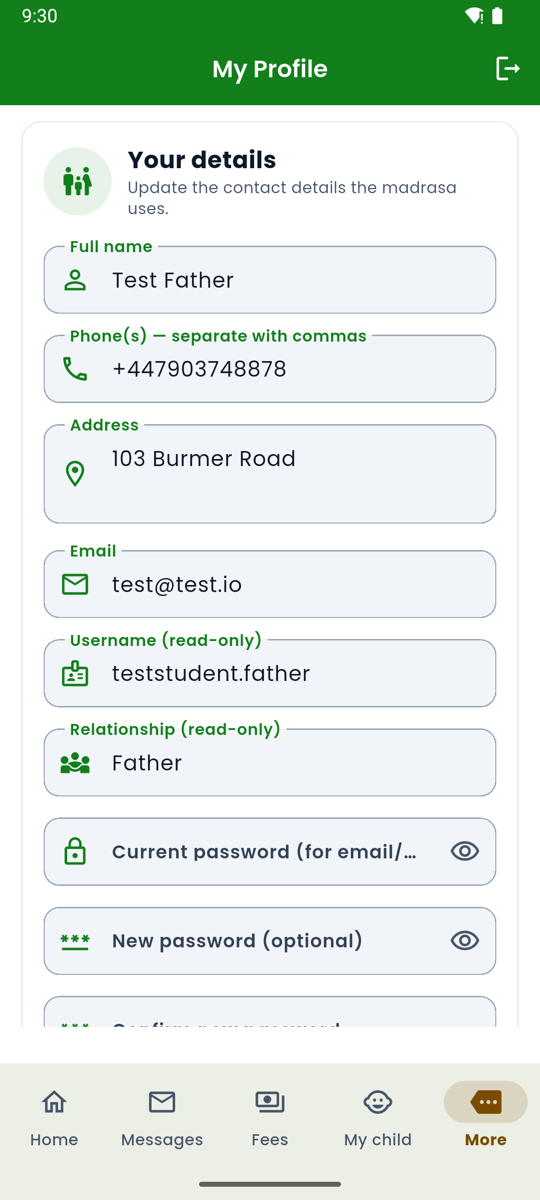
More opens a sheet with Contact, My Profile, and Logout. Contact has the madrasa’s email, phone, WhatsApp, Give Sadaqah, and directions. My Profile is where you correct your name, phones, address, and email, and change your password. To change the email or password, type your current password as well.
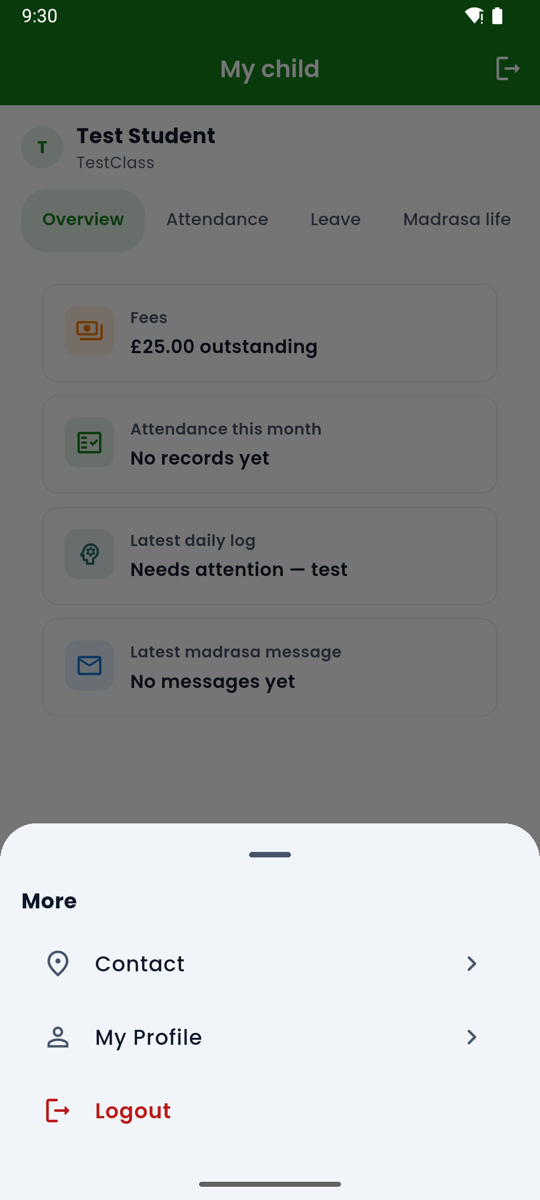
Android app More sheet with Contact, My Profile, and Logout.
Figure 8. The More sheet.
Android app My Profile with full name, phones, address, email, read-only username and relationship, and password fields.
Figure 9. My Profile in the app.

Updates

When a new version is published, the app shows Update required. Tap Update now, and Google Play installs the new version before you carry on. Everyone stays on the latest version.

If the app keeps asking you to sign in. Check that Remember me was ticked. If the office has just reset your password, every phone is signed out for safety, so sign in again with the new password.

4. Open the web portal like an app

On iPhone, a computer, or any browser, the parent web portal can sit on your home screen or in the Dock. It opens in its own window, without the usual browser tabs. Use the same address and the same sign-in. The icon is labelled Markaz Admin.

If you open the web portal on Android

On an Android phone, the parent web portal suggests the app. The sign-in page shows On Android? Get the Parent Portal app, and Home shows a card with Get it on Google Play. Tap either one to open the Play Store page, or tap Not now to keep using the browser. The card then stays hidden on that phone.
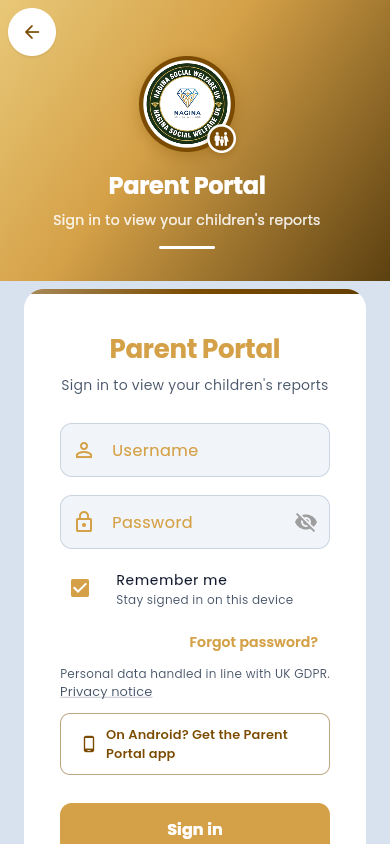
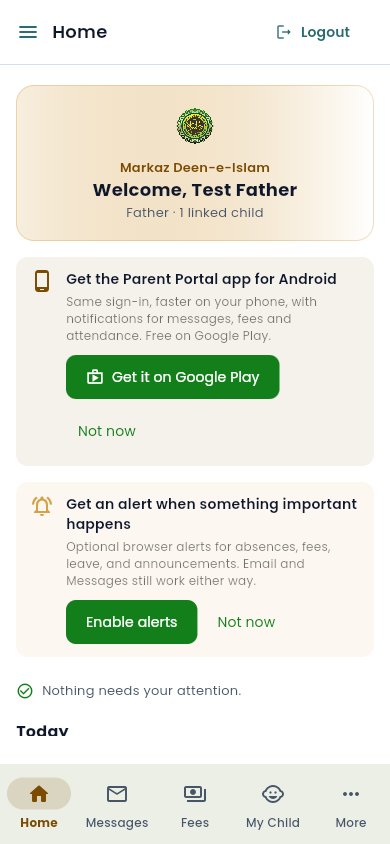
Parent web portal sign-in on an Android phone with the link On Android? Get the Parent Portal app.
Figure 10. The sign-in page on an Android browser.
Parent web portal Home on an Android phone with the card Get the Parent Portal app for Android and a Get it on Google Play button.
Figure 11. Home on an Android browser.

Chrome on a computer

  1. Open Chrome and go to https://admin.naginasocialwelfare.co.uk.
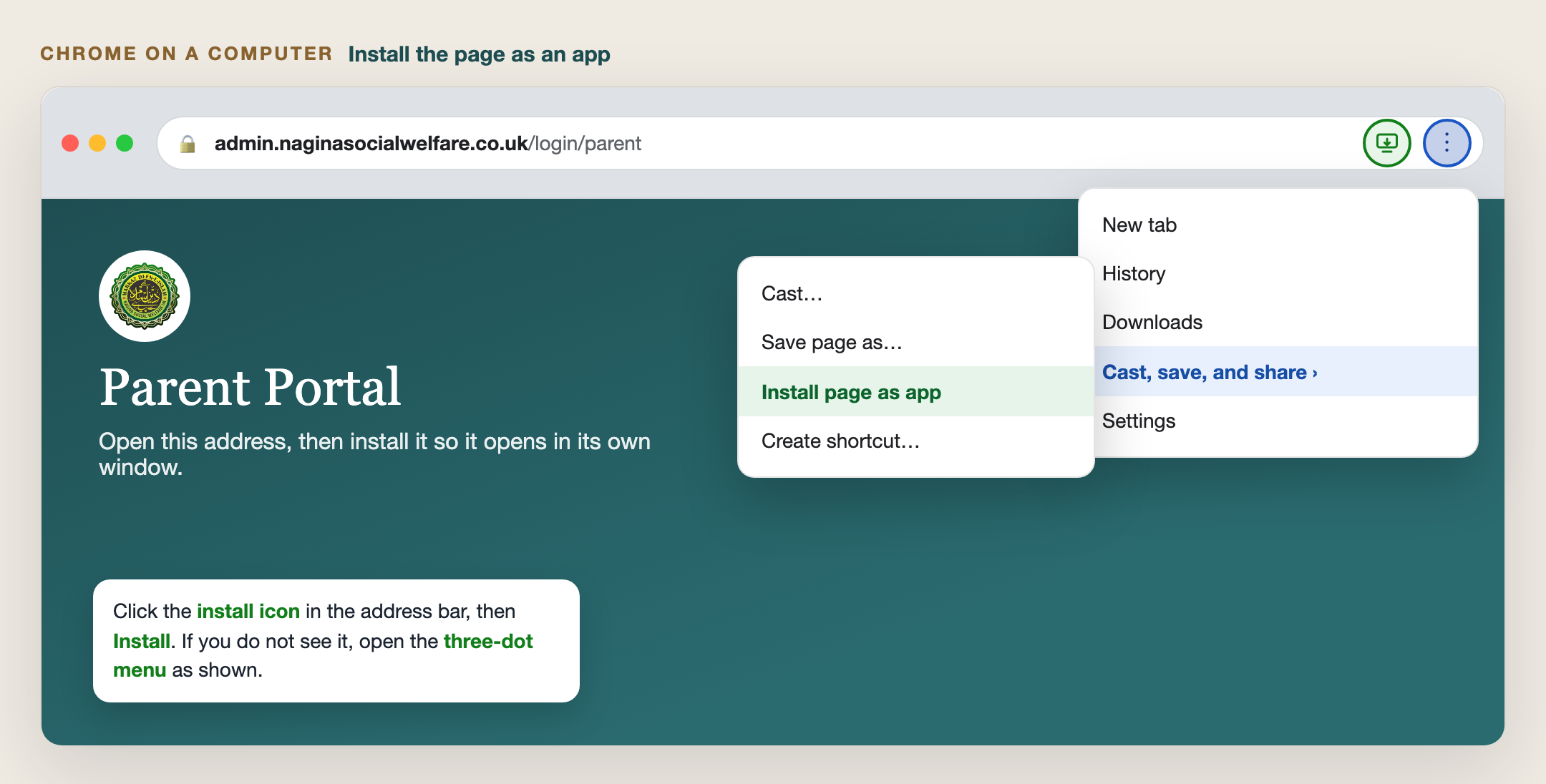
  2. At the right of the address bar, click the install icon (a small screen with an arrow), then Install.
  3. If that icon is missing, click the three-dot menu, then Cast, save, and share, then Install page as app.
  4. The portal opens in its own window. You can also open it later from the Dock or the Start menu.
Guide to Chrome on a computer: install icon in the address bar, and the menu path Cast, save, and share, then Install page as app.
Figure 12. Chrome on a computer. Use the install icon, or the three-dot menu.

Chrome on Android

The Play Store app is the better choice on Android. Use this only if you want the web portal itself on the home screen as well.
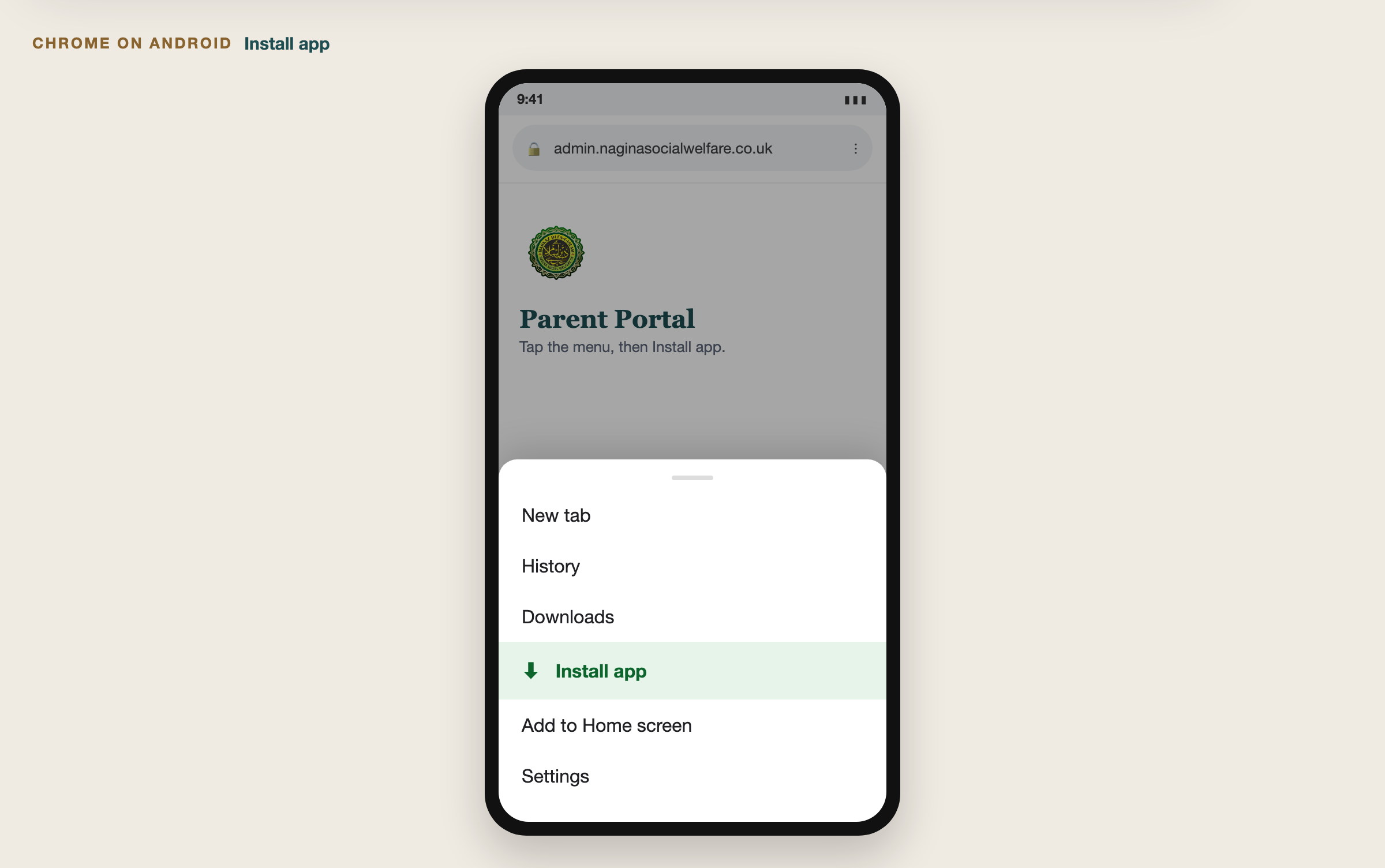
  1. Open the parent web portal in Chrome.
  2. Tap the three-dot menu at the top right.
  3. Tap Install app. If you only see Add to Home screen, tap that instead.
  4. Confirm. The Markaz Admin icon appears on the home screen.
Guide to Chrome on Android with the menu open and Install app highlighted.
Figure 13. Chrome on Android. Install app, or Add to Home screen.

Safari on iPhone

This is the way to use the portal on an iPhone while the App Store app is still coming.
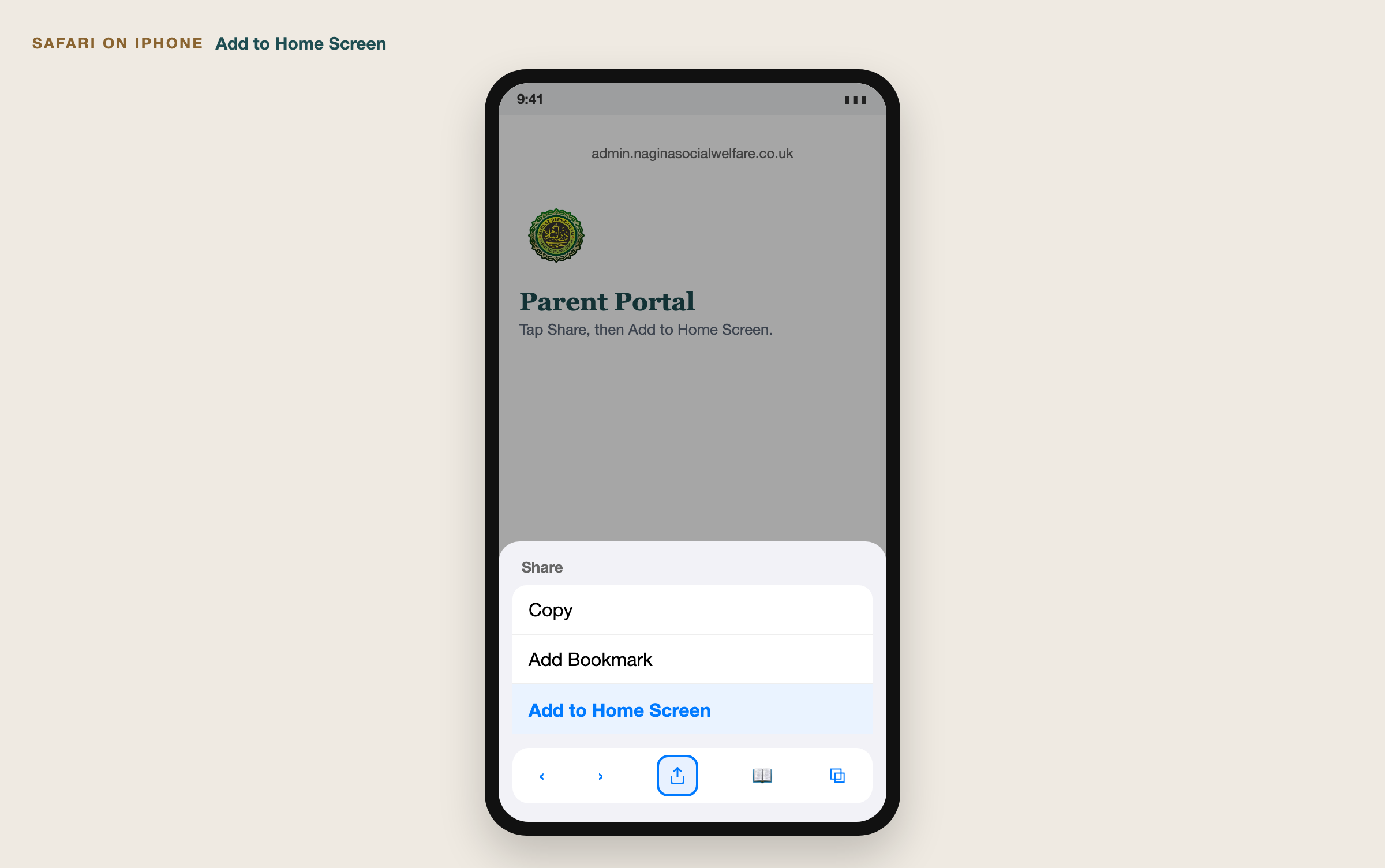
  1. Open the parent web portal in Safari. Other browsers on iPhone do not offer Add to Home Screen in the same way.
  2. Tap the Share button (the square with an arrow).
  3. Scroll the share sheet and tap Add to Home Screen.
  4. The name shown is Markaz Admin. Tap Add.
  5. Open the new icon from the Home Screen and sign in.

Safari on a Mac

  1. Open the parent web portal in Safari.
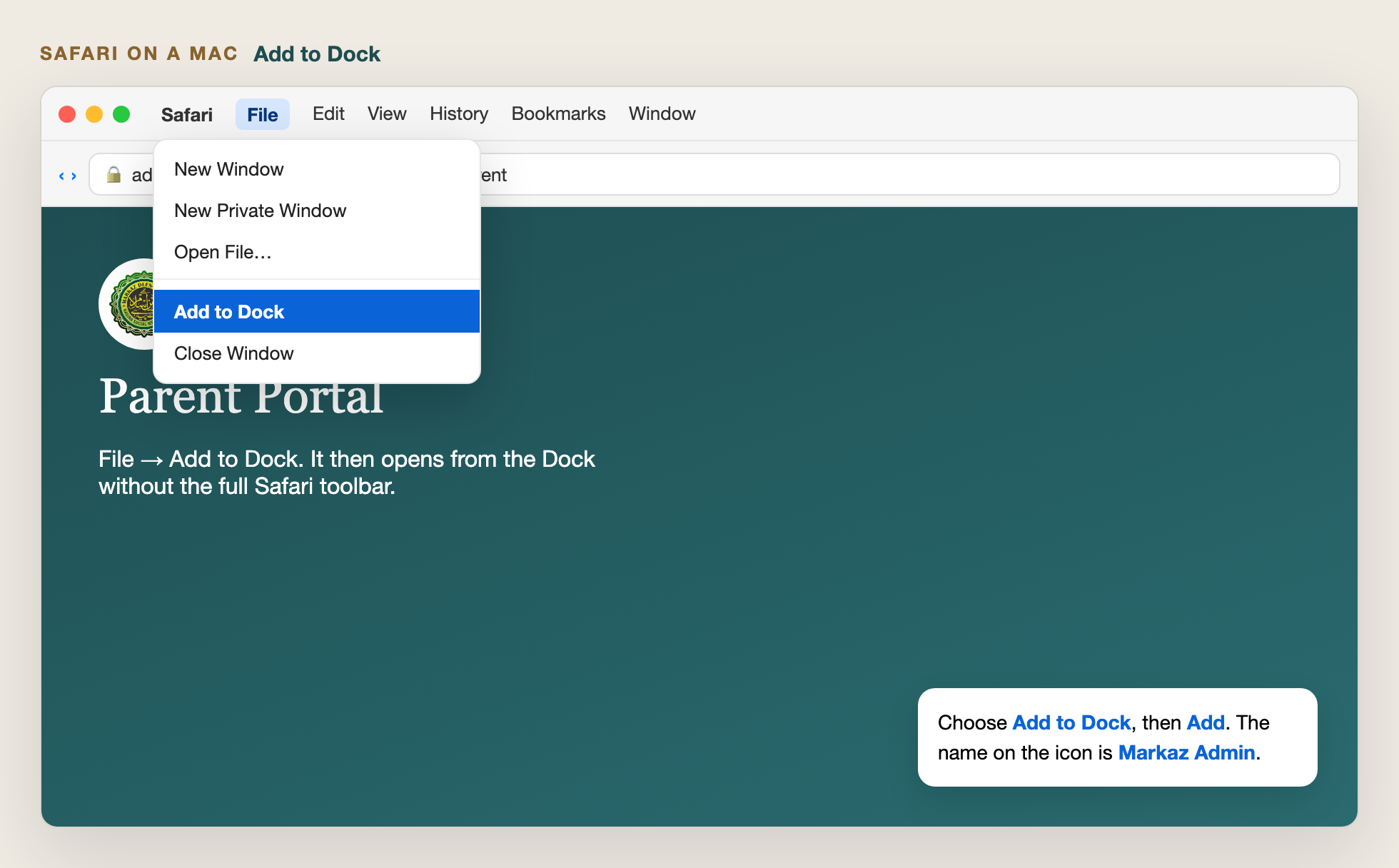
  2. In the menu bar, choose File, then Add to Dock.
  3. Click Add.
  4. Open Markaz Admin from the Dock. It uses a simple window, without Safari’s full toolbar.
Guide to Safari on iPhone with Add to Home Screen highlighted in the share sheet.
Figure 14. Safari on iPhone. Share, then Add to Home Screen.
Guide to Safari on a Mac with the File menu open and Add to Dock highlighted.
Figure 15. Safari on a Mac. File, then Add to Dock.

5. Open the web portal

The first screen asks you to choose a portal. Parents use the brown Parent card. The other cards are for admins, teachers, students, collectors, Islamic quizzes, and the Halal barcode helper.
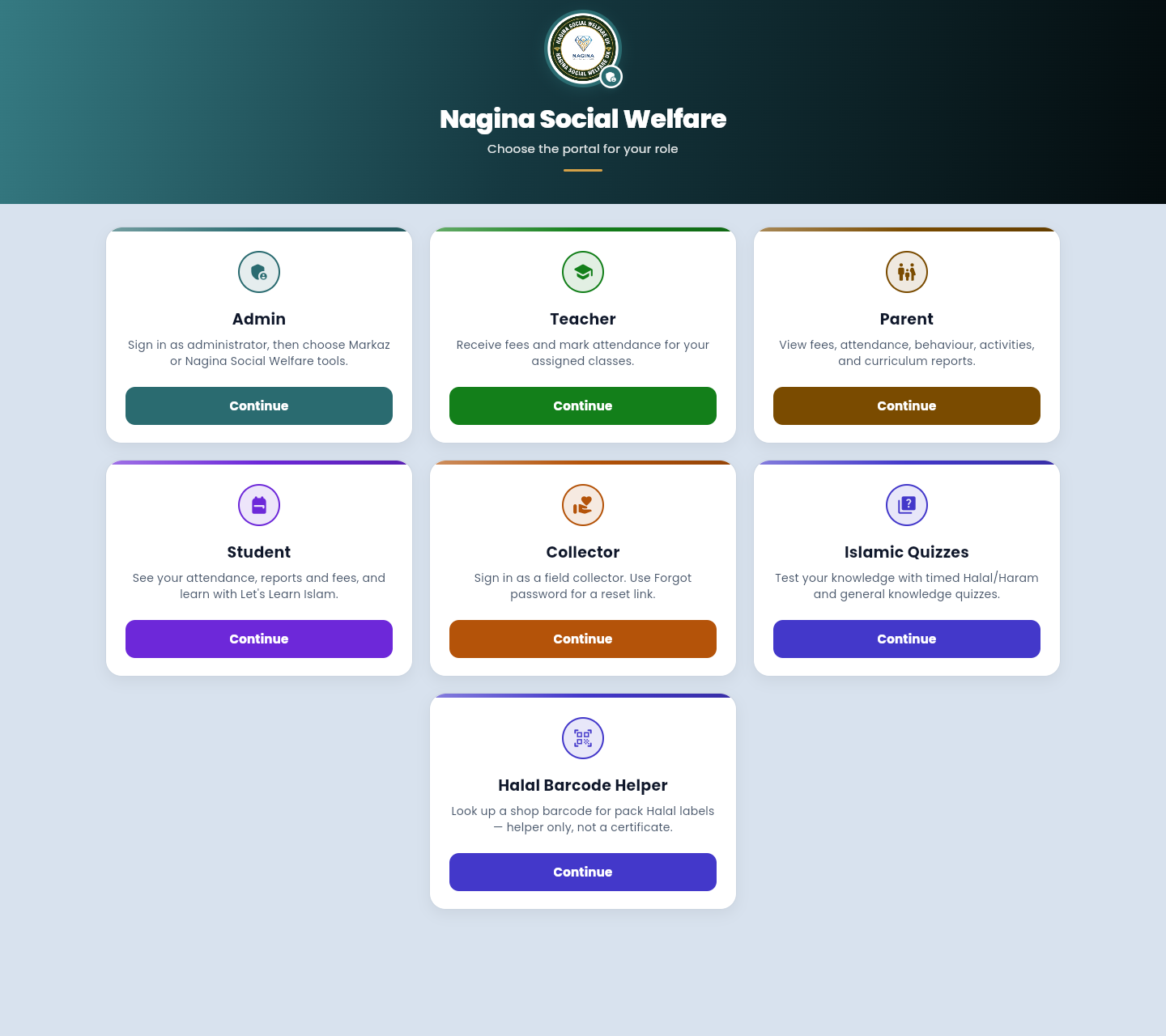
  1. Open https://admin.naginasocialwelfare.co.uk
  2. On the Parent card, press Continue.
  3. You land on the Parent Portal sign-in page. You can also go straight there at https://admin.naginasocialwelfare.co.uk/login/parent.
Portal chooser with Admin, Teacher, Parent, Student, Collector, Islamic Quizzes, and Halal Barcode Helper cards.
Figure 16. Choose Parent, then Continue.

6. Sign in

The sign-in card asks for username and password. Remember me is ticked already and keeps you signed in on this browser. Untick it on a shared computer.

  1. Type your username.
  2. Type your password. The eye icon shows or hides it.
  3. Press Sign in.
  4. Home opens, with your name in the welcome banner.

A wrong username or password shows “Invalid username or password.” Check the username with the office before trying again and again.

After you are in, the left menu is Home, Messages, Fees, My Child, Contact, and My Profile. Logout is at the top right and ends the session on this browser.
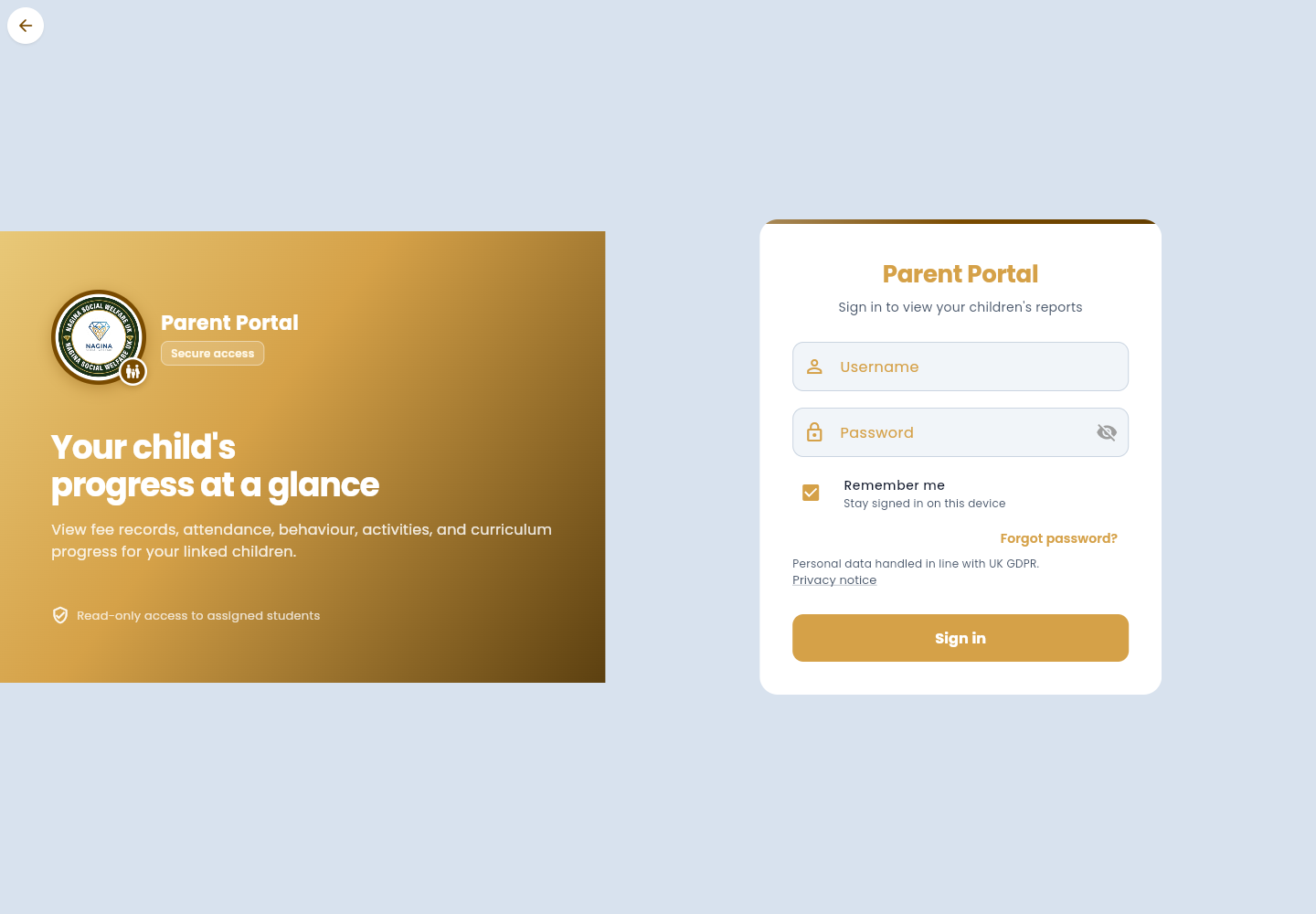
Parent Portal sign-in card with username, password, Remember me, Forgot password, and Sign in.
Figure 17. Parent sign-in. Use your username, not your email.

Forgot password

On the sign-in page, press Forgot password?. Enter the email or username on your parent record, then Send link. Open the email and follow the link to choose a new password. Use Cancel if you opened the box by mistake.
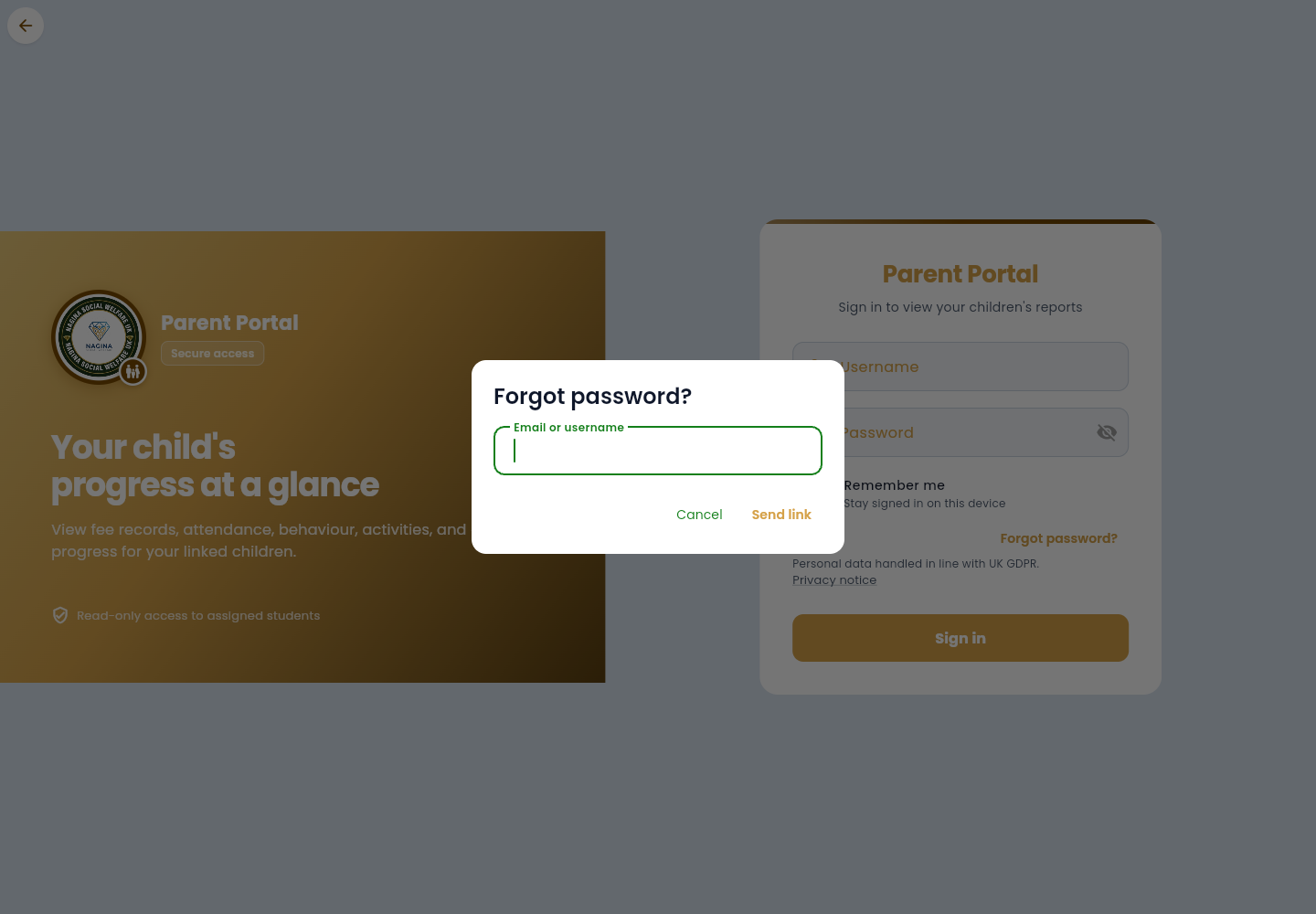
Forgot password dialog asking for email or username, with Cancel and Send link.
Figure 18. Request a reset link.

First-time invite

When the office creates your account, you receive an email with a setup link. Open that full link. It opens a page titled “Set up your parent account,” where you choose a password of at least 6 characters. After that you go to Home. The same password then works in the Android app.

If the link is incomplete, the page says Invite link incomplete. Use the whole link from the email, or ask the office to send a new invitation. Do not try to type the setup address yourself without the token.
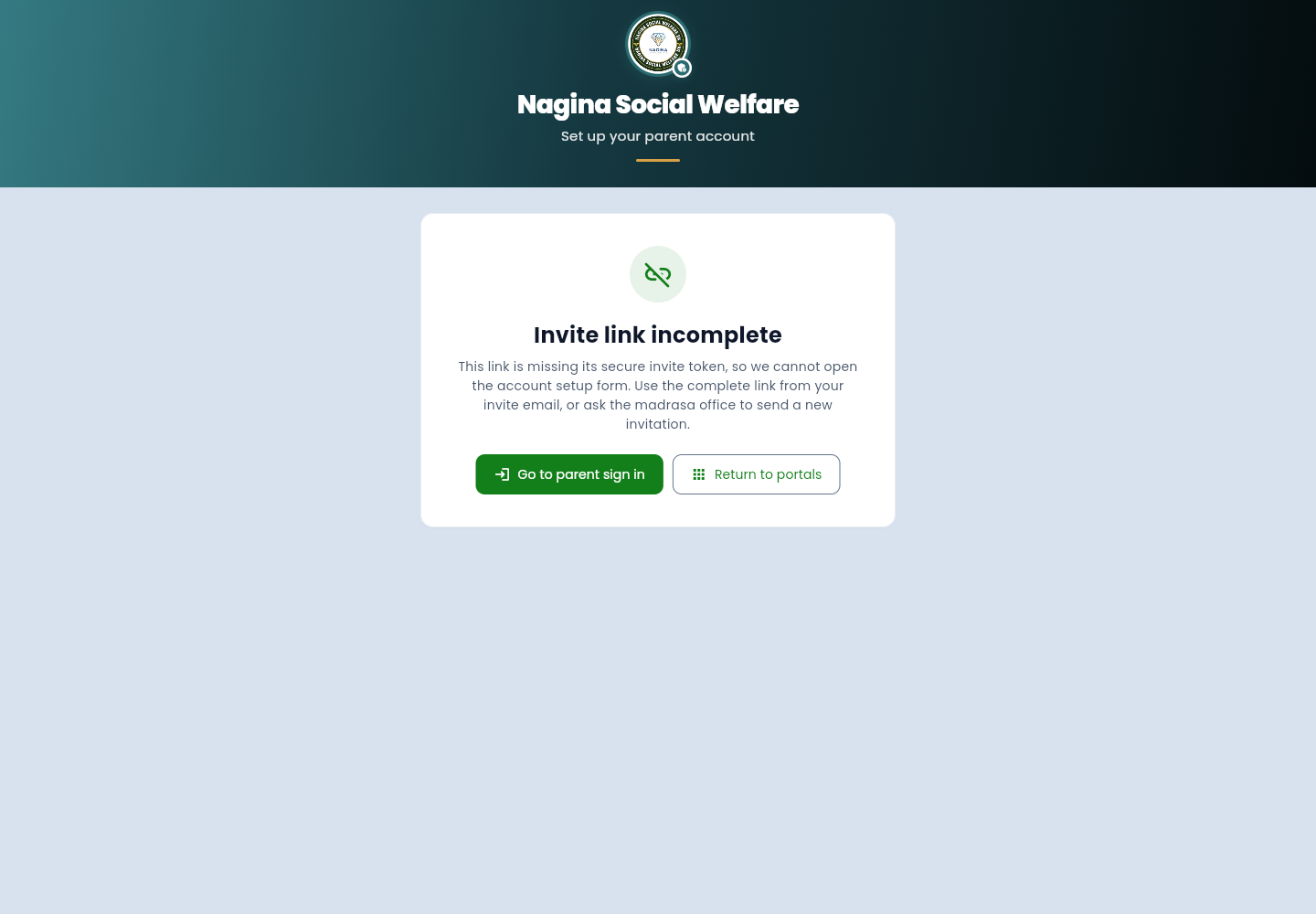
Set up your parent account page saying the invite link is incomplete.
Figure 19. This is what an incomplete invite link looks like. A real invite email opens the password form instead.

7. Home

Home is the summary after you sign in. It points you to the pages that need you today.

  • Welcome banner. Your name, your relationship, and how many children are linked.
  • Alerts card. Offers browser alerts for absences, fees, leave, and announcements. Enable alerts turns them on. Not now hides the card. Email and Messages work either way.
  • Needs attention. Unread messages, fees outstanding, attendance paused because of unpaid fees, and leave requests waiting for approval. Tap one to go straight to it. When there is nothing, it says “Nothing needs your attention.”
  • Today. One row per child: class, whether today’s register has been taken, and how much of today’s daily checklist is done. Tap the row to open My child, or the checklist chip to open the checklist.
  • Updates. The latest notices from the madrasa for your household, newest first.
  • Madrasa card. Address, Email, phone, WhatsApp, Give Sadaqah, and a link to the map page.
  • Shortcuts. Request leave, Islamic Quiz, and Halal barcode helper.

Islamic Quiz and Halal barcode open other tools on the same parent web portal. The quiz is a timed practice quiz. The barcode helper looks up a shop label. It is a helper, not a Halal certificate.
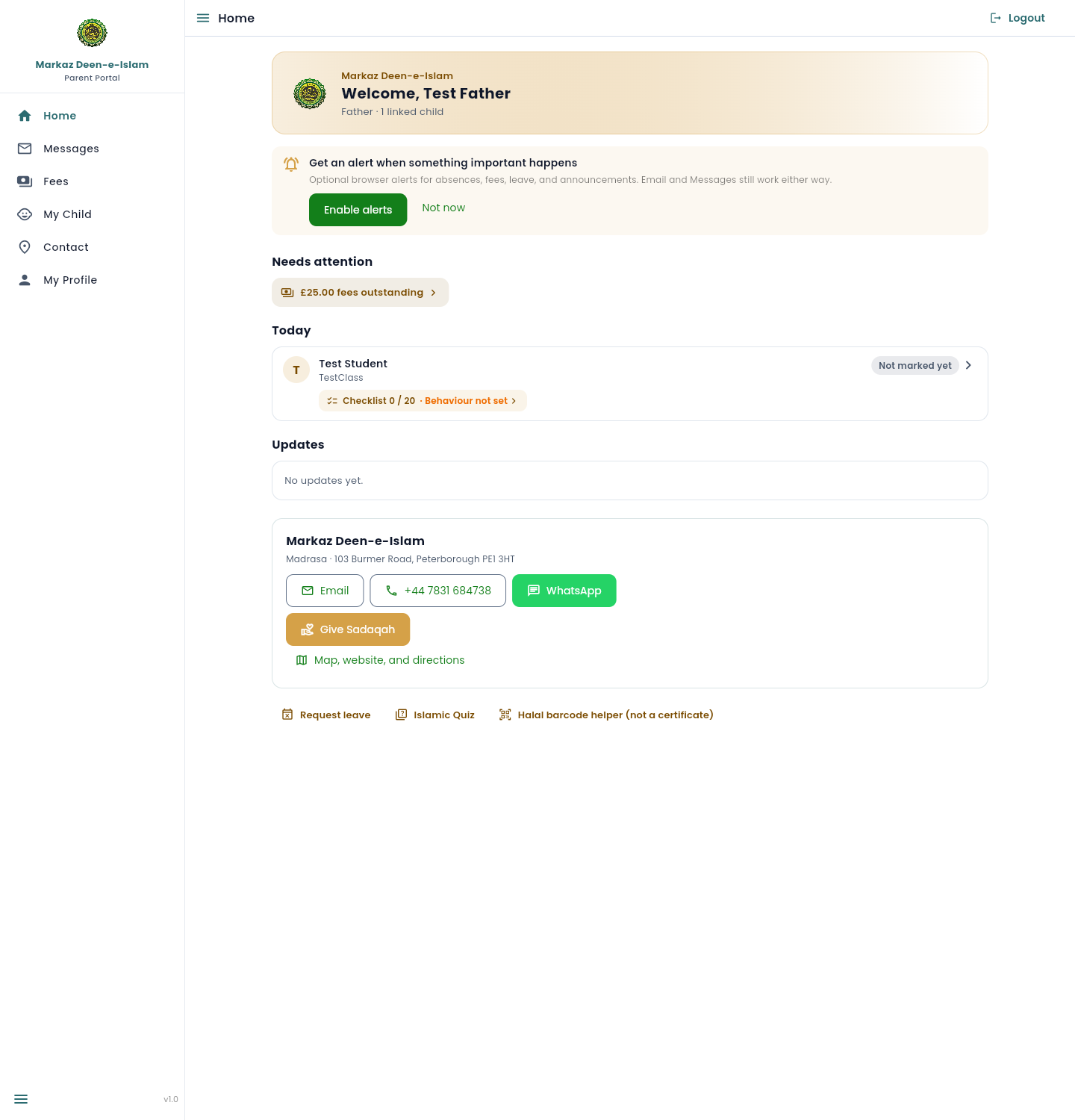
Parent home with welcome banner for Test Father, alerts card, £25.00 fees outstanding under Needs attention, Test Student under Today, Updates, madrasa contact buttons, and shortcuts.
Figure 20. Home after sign-in.

8. Messages

Messages is the copy of emails the madrasa sends you. It is not a chat. You read notices here. You do not reply inside the portal.

This account has no messages yet, so the page shows an envelope and “Emails from the madrasa will appear here.”

When the office or a teacher sends mail about your child, the same note appears in this list. Typical notices are announcements, absence marks, fee receipts, fee reminders, fee waivers, term reports, leave decisions, Madrasa life notes, and Star of the Week.

Once messages exist, you can:

  1. Switch between All and Unread.
  2. If you have more than one child, filter by child, or show all children.
  3. Open a message to read it. Opening it marks it read.
  4. Use Mark as unread if you want it highlighted again, or Mark all read when the unread count is above zero.
  5. On a wide screen the list stays on the left and the open message on the right. On a phone, the message opens on its own.

An unread count also appears on Home and on the Messages item in the menu. Older emails sent before this inbox existed are not copied in automatically.
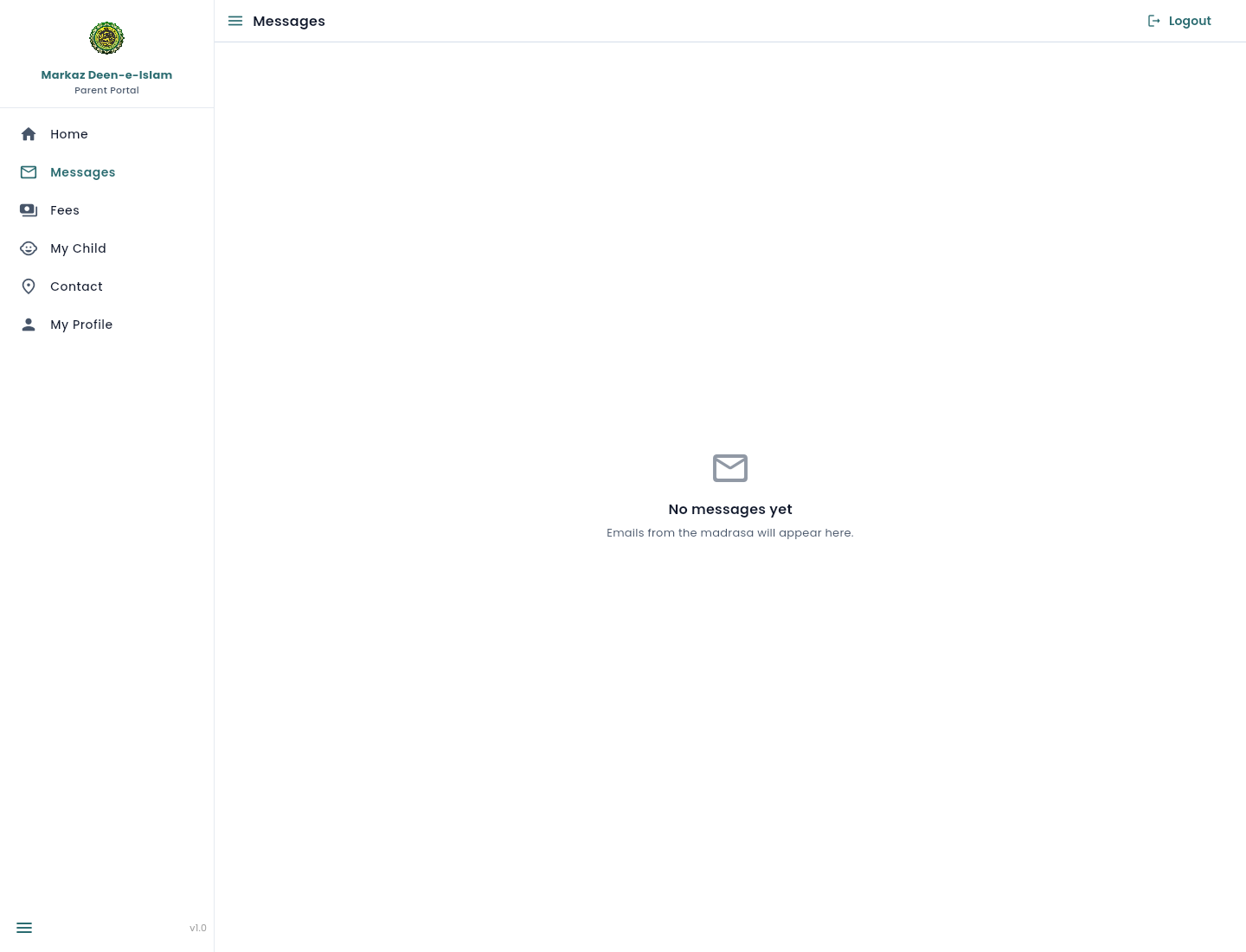
Messages page with an empty state: emails from the madrasa will appear here.
Figure 21. Messages, before any madrasa email has been stored.

9. Fees

Fees shows money for the selected child. The three boxes are Total Fee, Total Paid, and Due. Under them is the payment history.

Test Student’s fee for October is £25.00, nothing has been paid, and £25.00 is due.

  1. Open Fees in the left menu, or tap the fees item under Needs attention on Home.
  2. If more than one child is linked, use Select child.
  3. Read the due amount. Green £0.00 means nothing is outstanding. An orange due amount means there is a balance to pay.
  4. When an amount is due, a Pay fees card appears with the balance filled in. Change the amount if you want to pay only part of it. Pay with card opens a secure SumUp page.
  5. After a successful card payment you return to Fees, with a short thank-you note.

Cash taken at the madrasa is recorded by staff. It shows in payment history after they save it. You cannot edit fee amounts yourself. The picture below was not used to start a payment.
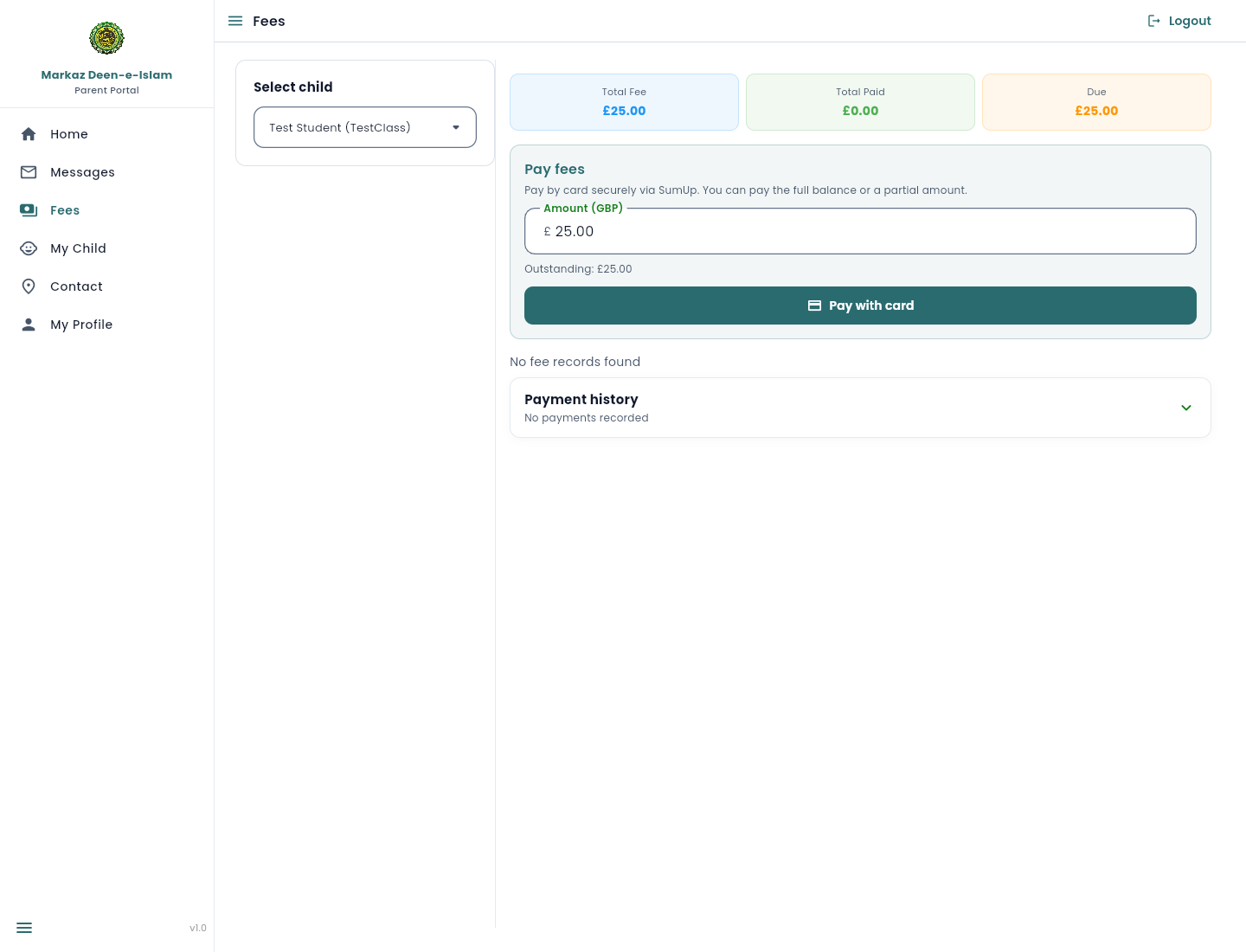
Fees page for Test Student showing £25.00 total, £0.00 paid, £25.00 due, and a Pay with card button.
Figure 22. Fees with a balance ready to pay by card.

10. My child

My child is the record book for one student. The child’s name sits above eight tabs: Overview, Attendance, Leave, Madrasa life, Learning, Term report, Daily checklist, and Let’s Learn Islam. With more than one linked child, a switcher at the top changes who you are looking at. Everyone else’s children stay hidden.

These pages are for reading, except Leave, where you can ask for time away, and Daily checklist, where you tick off your child’s day.

Overview

Four cards summarise the child: fees, attendance this month, the latest daily log, and the latest madrasa message. Each card is a shortcut into the fuller page.
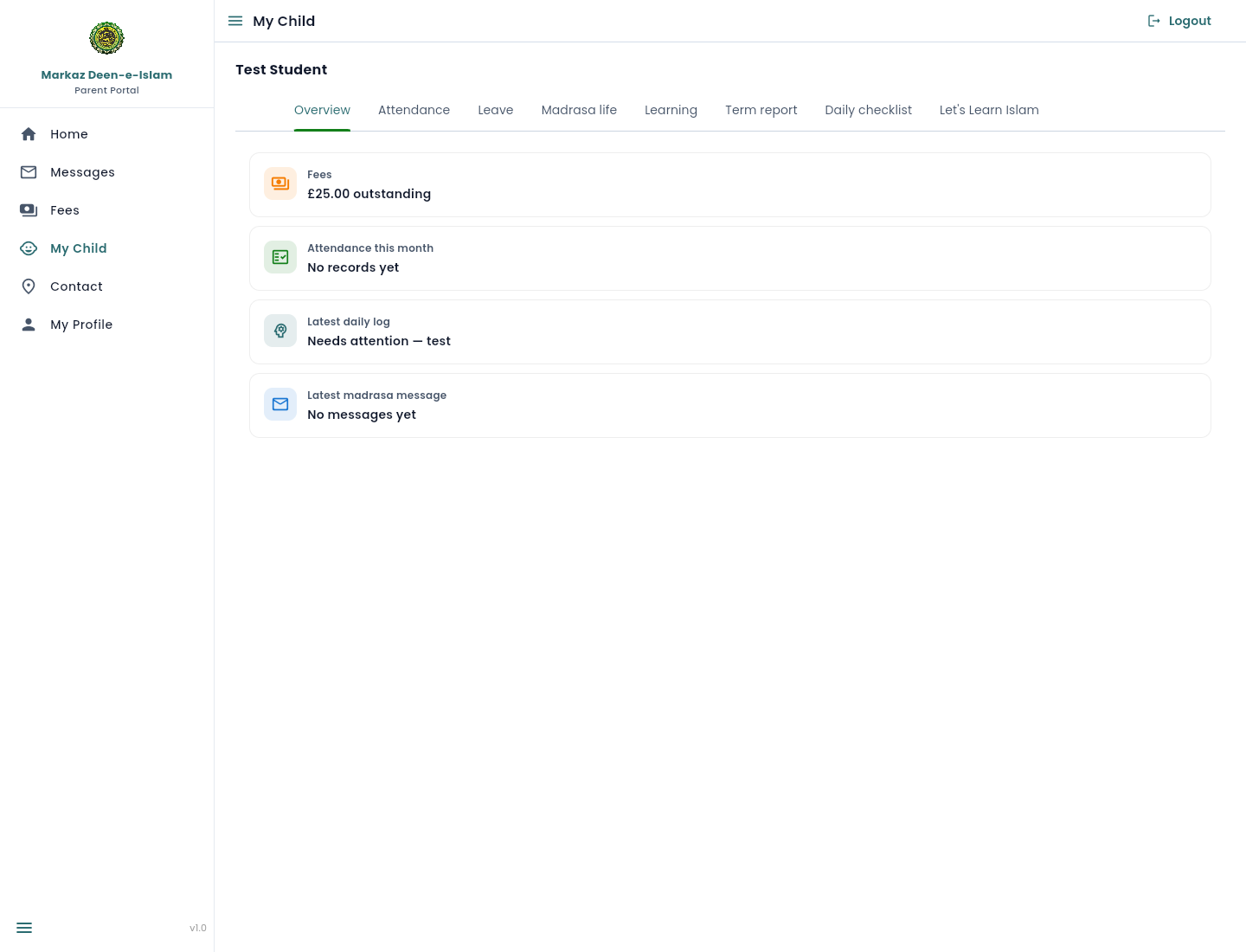
My child overview for Test Student showing £25.00 outstanding, no attendance yet, a latest daily log, and no messages.
Figure 23. Overview for one child.

Attendance

The month bar moves with the arrows. The totals are Present, Late, Absent, Informed, Uniform, Behaviour, and the attendance rate. The calendar marks the days the teacher has saved. Informed days are absences the madrasa already knows about, including approved leave.

October 2026 for Test Student has no marks yet, so every total is zero and the calendar days are blank.
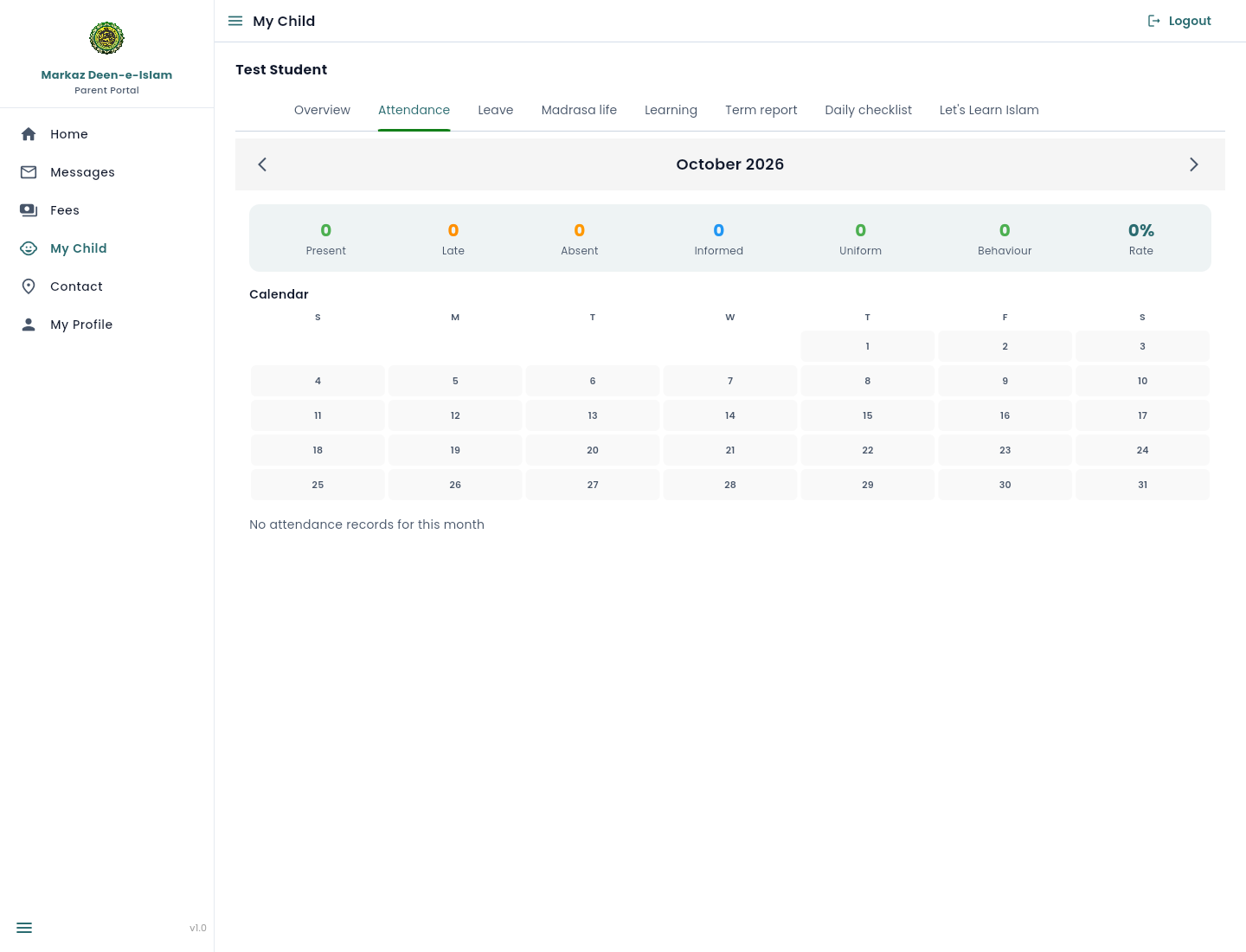
Attendance tab for October 2026 with zero counts and an empty calendar.
Figure 24. Monthly attendance.

Leave

Use this when your child will miss madrasa and you want the class teacher to approve it. Approved leave is stored as Informed attendance, so you are not sent an absence email for those days.

  1. Open My child, then Leave. You can also use the Request leave shortcut on Home.
  2. Press Request leave.
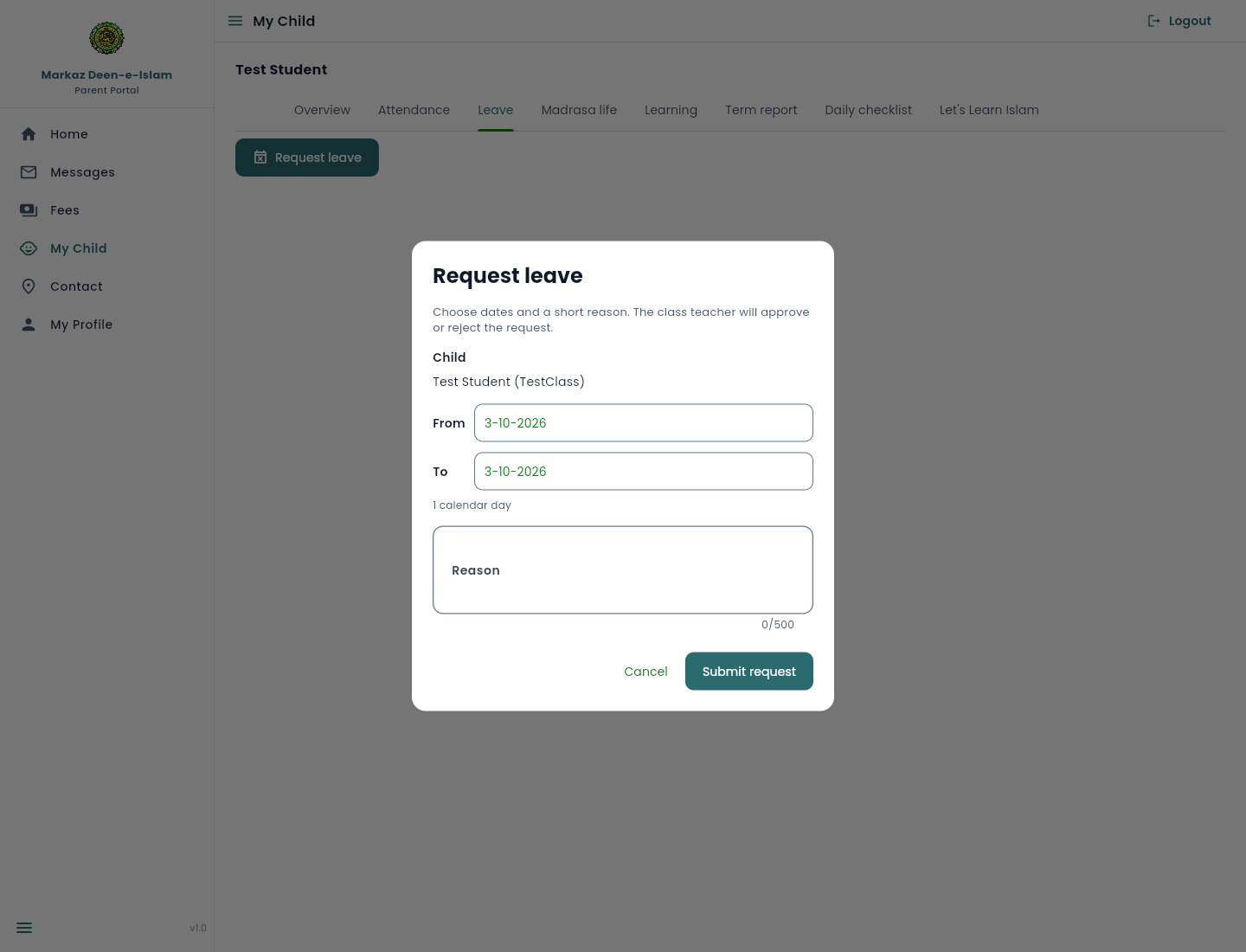
  3. Check the child. If several children are linked, tick each one who will be away. One submit covers the group.
  4. Set From and To. The form shows how many calendar days that is.
  5. Write a short reason, up to 500 characters.
  6. Press Submit request. Cancel closes the form without sending it.

The list then shows each request as pending, approved, rejected, or cancelled. You can cancel a request only while it is still pending. The teacher’s decision also arrives by email and in Messages.
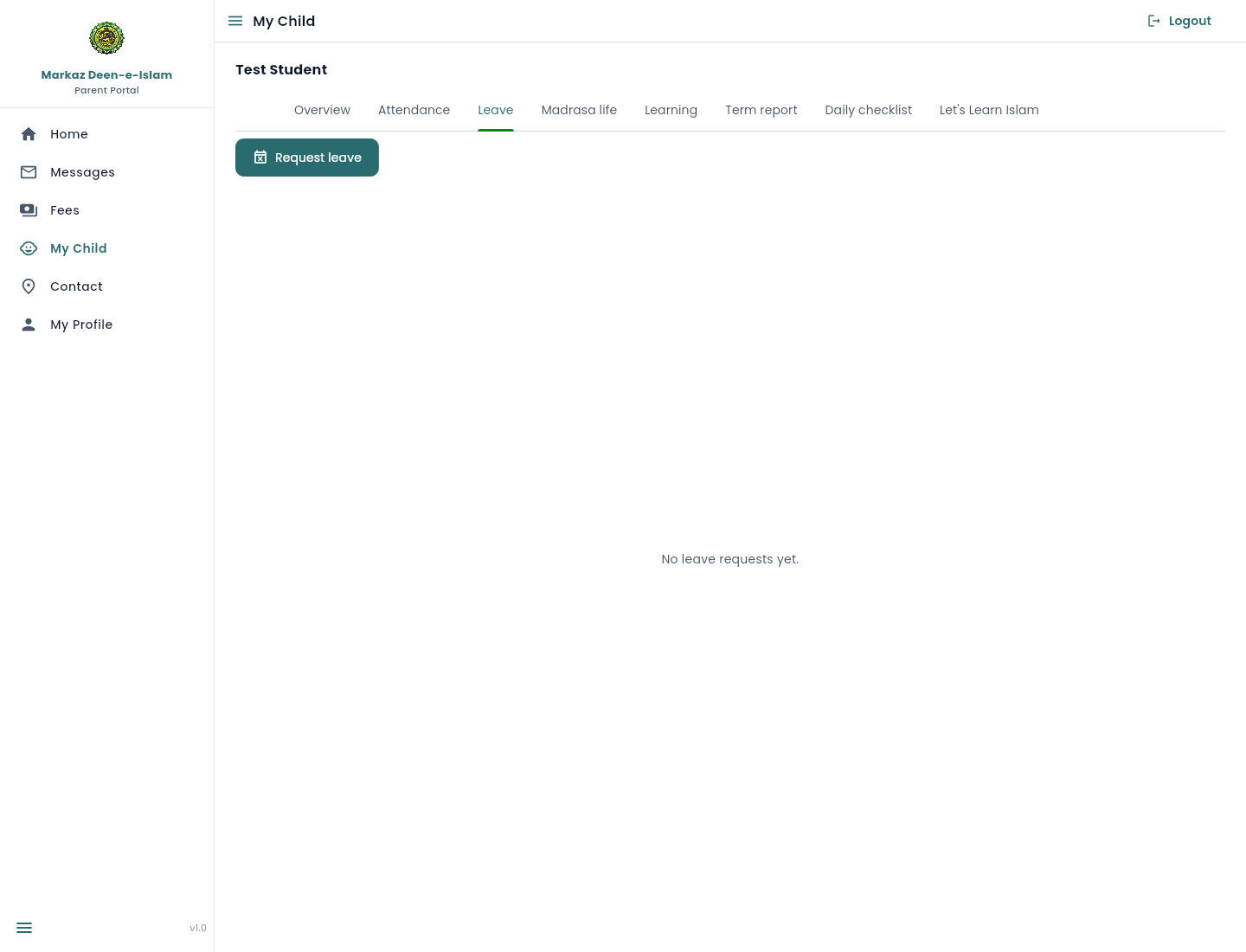
Leave tab with a Request leave button and the text No leave requests yet.
Figure 25. Leave list, before any request.
Request leave dialog for Test Student with from and to dates and an empty reason box.
Figure 26. The request form. This picture was closed with Cancel, so nothing was submitted.

Madrasa life

Madrasa life is a date-ordered list of what teachers have written about the child outside the formal term report: behaviour notes, activities, and participation. Newest entries are at the top. You cannot add or edit them. A new note also arrives in Messages.
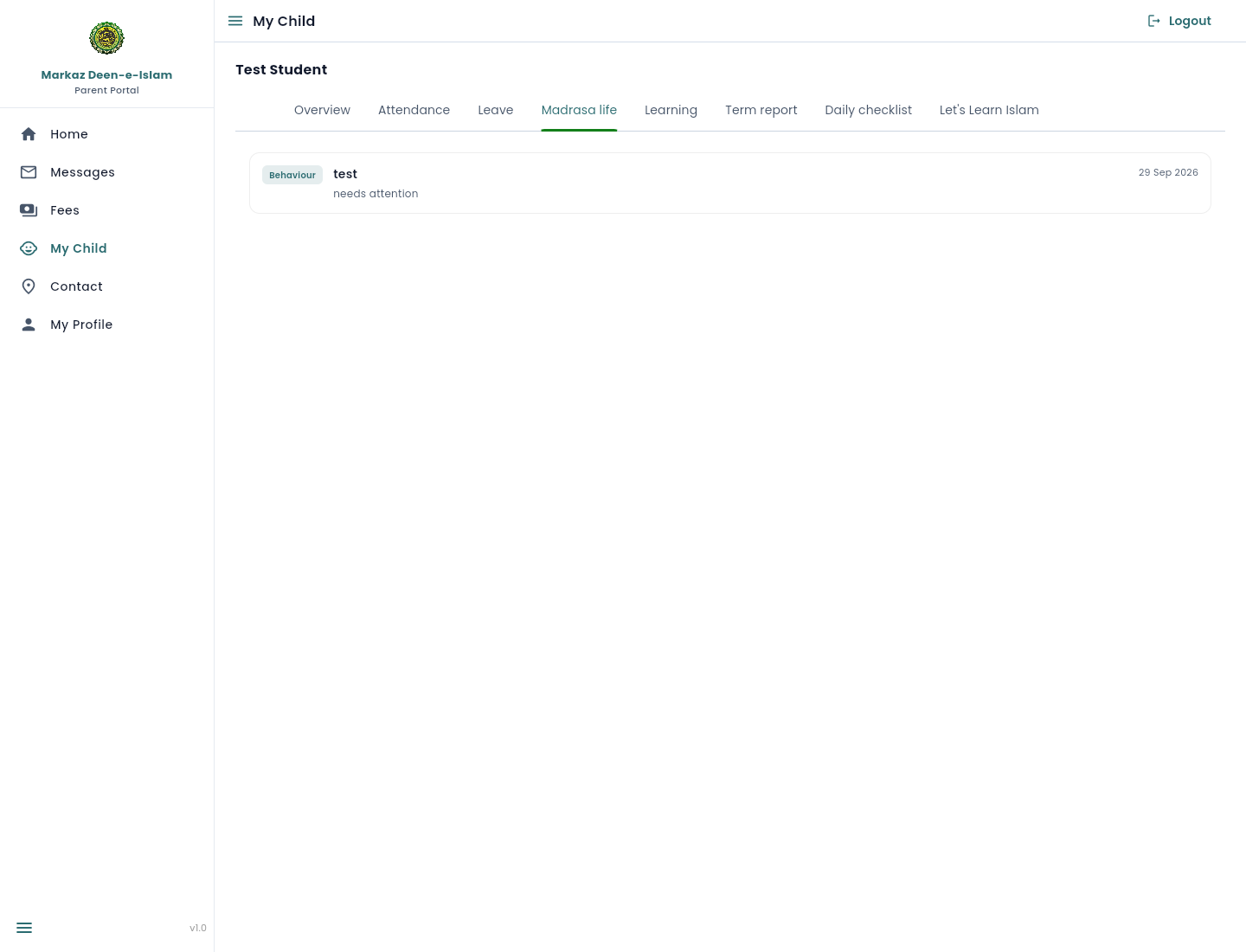
Madrasa life tab with one behaviour note dated 29 September 2026.
Figure 27. Madrasa life, with one test behaviour note.

Learning

Learning shows the teacher’s daily marks. It is view only. Tasks that were never attempted are hidden, so you see work that is completed or in progress.

The categories are Qaida, Quran, Surah Memorization, Duas, Islamic Education, and Participation. Open a category to see its list.
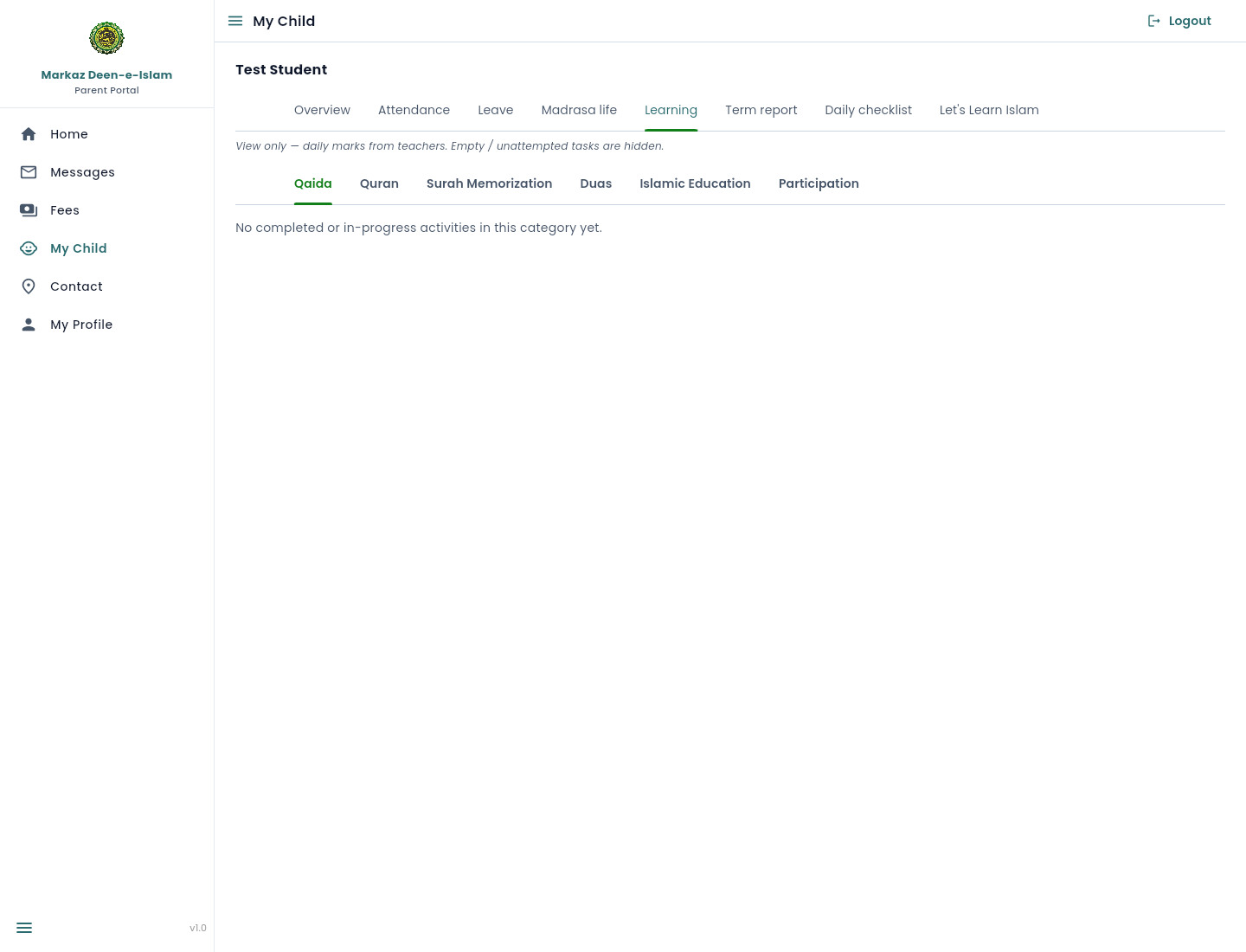
Learning tab with category tabs Qaida, Quran, Surah Memorization, Duas, Islamic Education, and Participation.
Figure 28. Learning categories.

Term report

Term report gathers the child’s name and class, the attendance rate, the term ratings, and curriculum progress. It is the page to read when the teacher has saved a term summary. You can also receive that summary by email, which then appears in Messages.
Term report for Test Student in TestClass with 0 percent attendance and no term rating or curriculum progress yet.
Figure 29. Term report before ratings and progress are saved.

Daily checklist

The daily checklist is a list of good habits for each day, grouped into Morning, Day, and Evening: duas, the five prayers, helping at home, and a good deed. Your child ticks items in the Student Portal, and you can tick them here too.
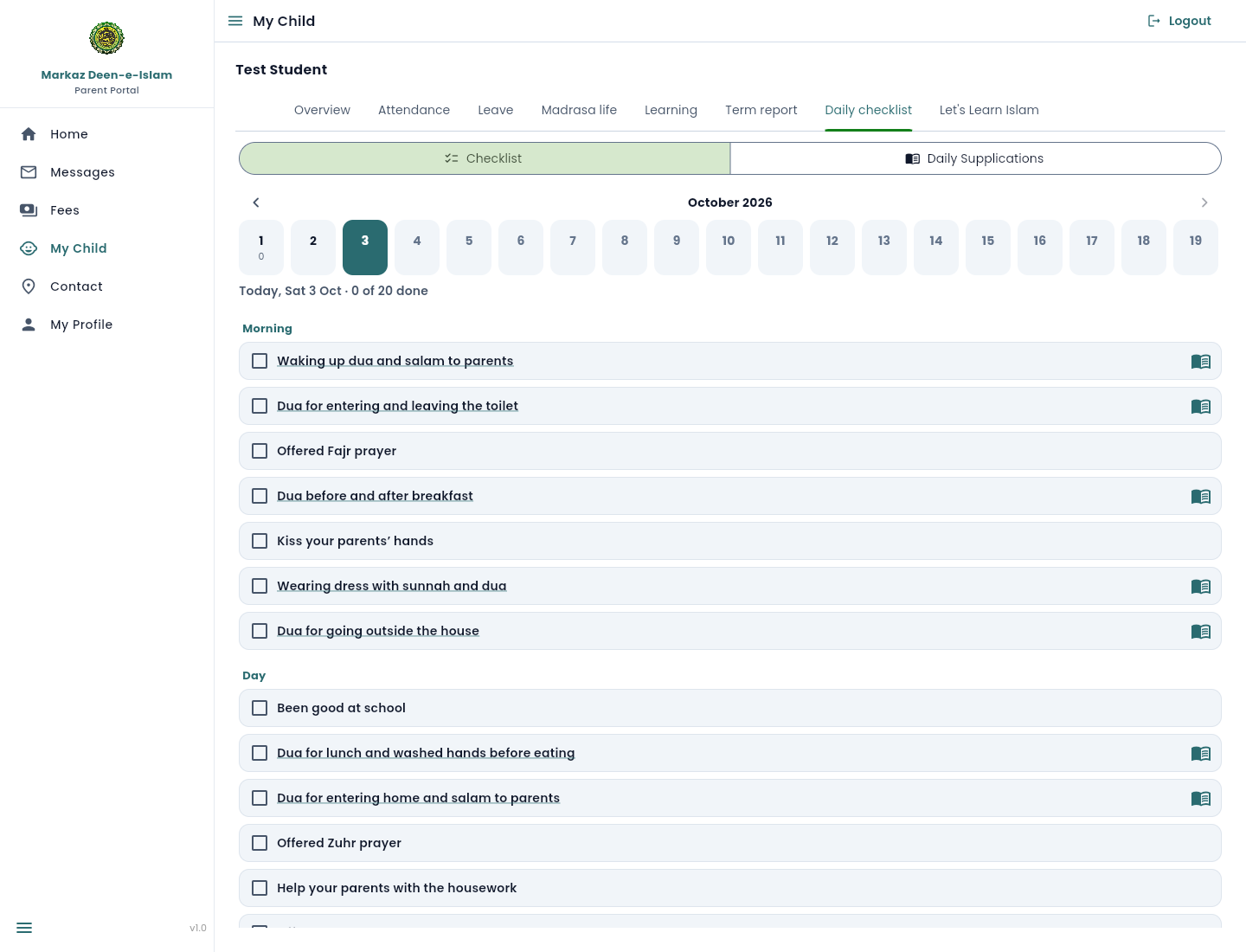
  1. Open My child, then Daily checklist. The Today row on Home opens it as well.
  2. Pick a day in the date strip. Today is selected first. You can tick today and yesterday. Older days are for reading.
  3. Tap an item to tick it. Items with a book icon have a dua. Tap the name to read it.
  4. Under Parents only, set your child’s behaviour for the day as good or bad. Only a parent can set this.
  5. Daily Supplications at the top lists the duas to read together.
Daily checklist for Test Student on Saturday 3 October, 0 of 20 done, with the Morning and Day items.
Figure 30. Daily checklist for today.

Let’s Learn Islam

Let’s Learn Islam is the set of lessons your child takes in the Student Portal. This tab shows their progress: modules passed, cards learned, the current streak, and when they last practised. Each module shows lessons and cards done, and whether it is not started, in progress, or passed. When your child passes a module, its certificate appears here to download.
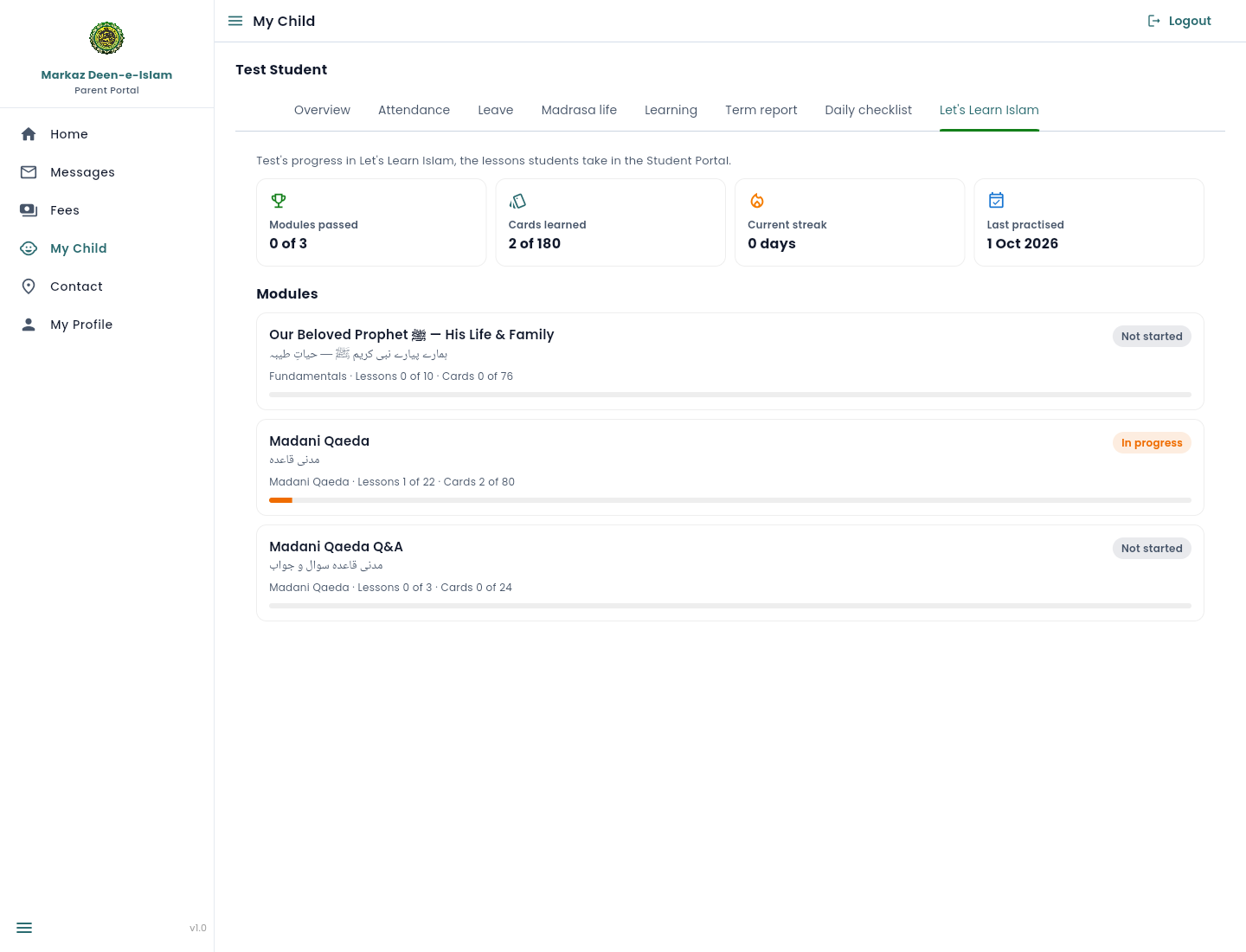
Let’s Learn Islam progress for Test Student: 0 of 3 modules passed, 2 of 180 cards learned, and Madani Qaeda in progress.
Figure 31. Let’s Learn Islam progress.

11. Contact

Contact is the madrasa’s public details, not your own. Your own phone and address are on My Profile.

  • The map shows 103 Burmer Road, Peterborough PE1 3HT. Open in Google Maps starts directions.
  • NaginaSocialWelfare.co.uk opens the public website.
  • Give Sadaqah opens the donations page.
  • Email, phone, and WhatsApp use info@naginasocialwelfare.co.uk and +44 7831 684738.

The same buttons also appear on Home and on My Profile.
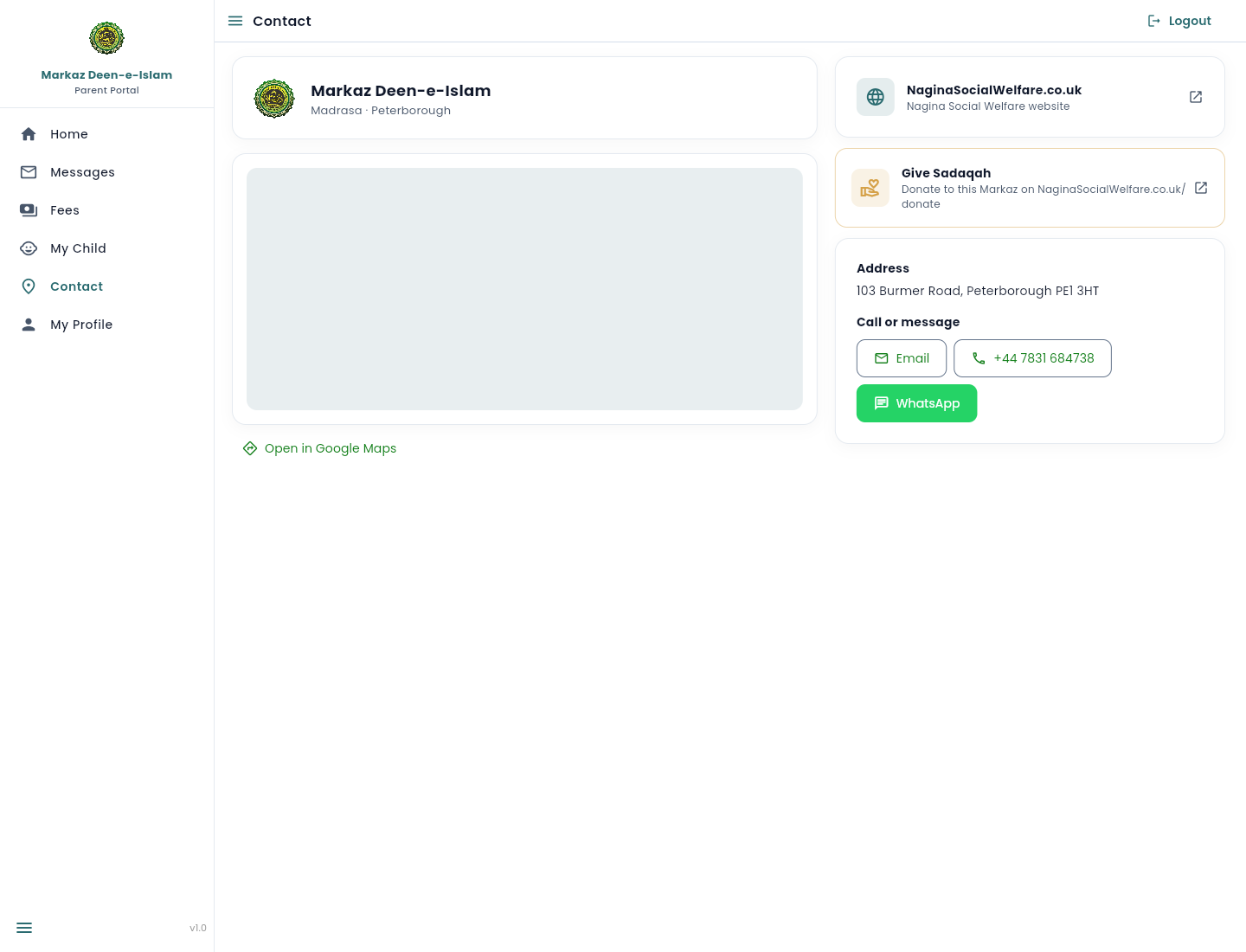
Contact page with a map of the madrasa, website link, Give Sadaqah, address, email, phone, and WhatsApp.
Figure 32. Contact.

12. My Profile

My Profile is the only place you edit your own record. The office still owns the username and the relationship (for example Father).

  1. Under Contact details, correct your full name, phone numbers, email, or address. Separate more than one phone number with commas.
  2. Press Save changes. The button appears once something has changed. Changing the email also asks for your current password.
  3. To change your password, press Change password, type your current password and the new one twice, then save.

Browser alerts asks this browser for permission to show a notification when something important happens. Email and Messages still arrive if you leave alerts off. If the browser has blocked notifications, allow them in the site settings and try the switch again. On iPhone, add the portal to your Home Screen first.

Dark mode applies to the whole Parent Portal on this device only.

Export my data downloads a copy of the personal information the portal holds for you. Privacy notice (draft) opens the privacy text.
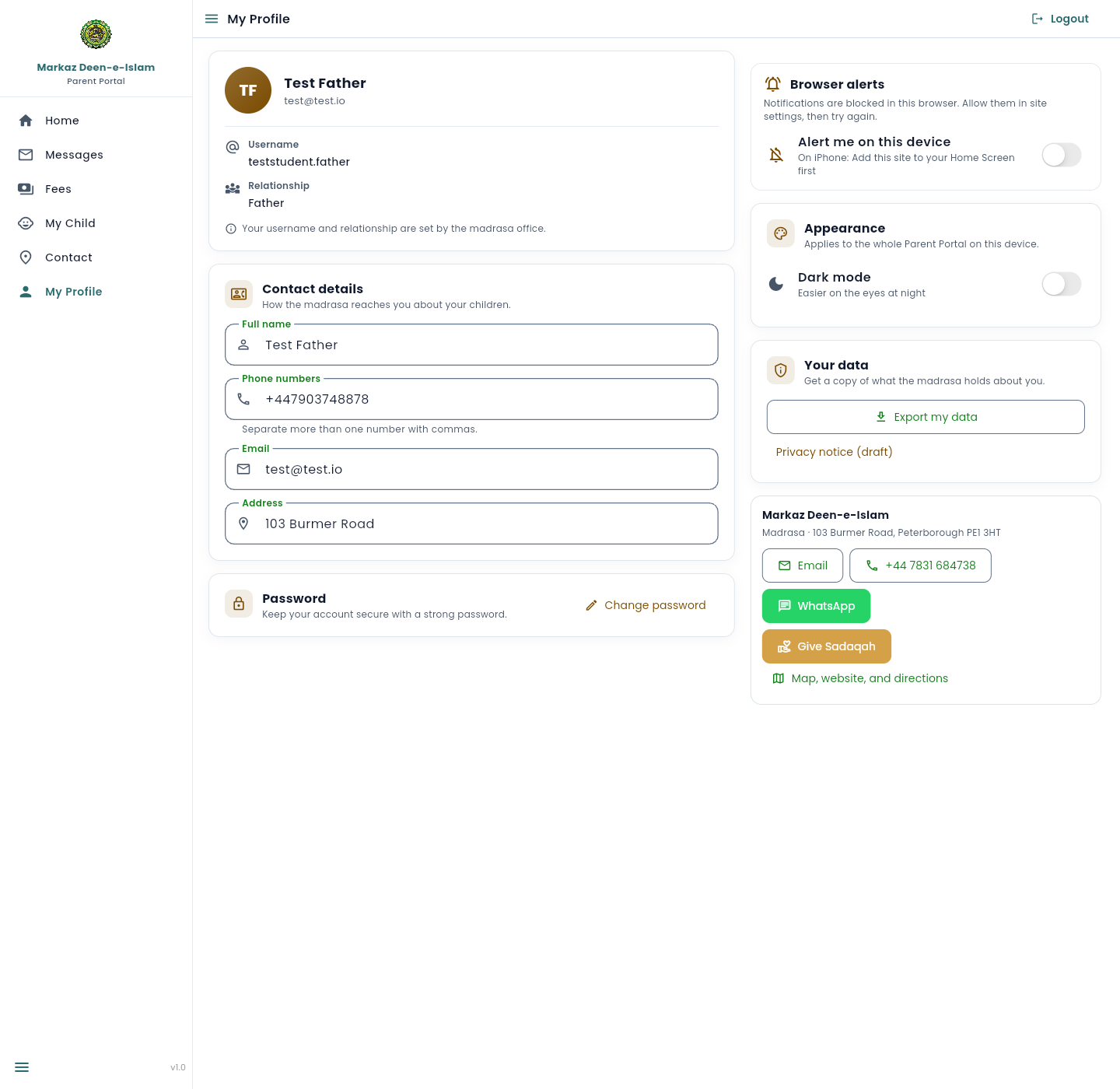
My Profile with name, email, read-only username and relationship, contact details, Change password, browser alerts, dark mode, and Export my data.
Figure 33. My Profile.

13. Web portal on a phone

On a narrow screen the left menu is replaced by a bar along the bottom: Home, Messages, Fees, My Child, and More. The same pages are there. Cards and buttons stack so you do not have to slide sideways.

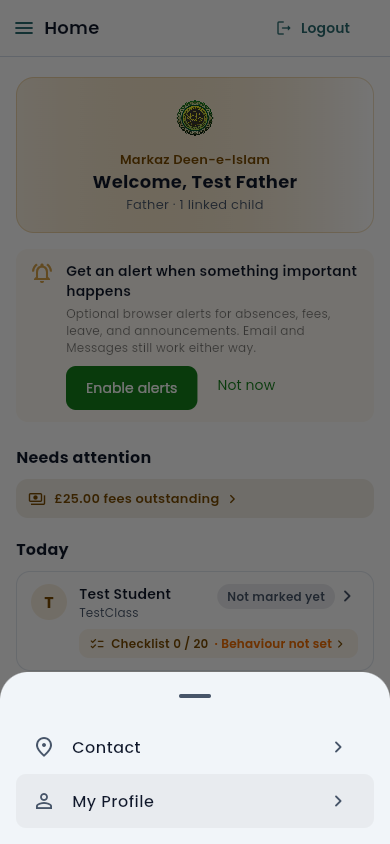
More opens a sheet with Contact and My Profile. Logout stays at the top right. The menu icon at the top left opens the full list as a drawer if you prefer that. On an Android phone, the app from Google Play is the easier choice (chapter 3).
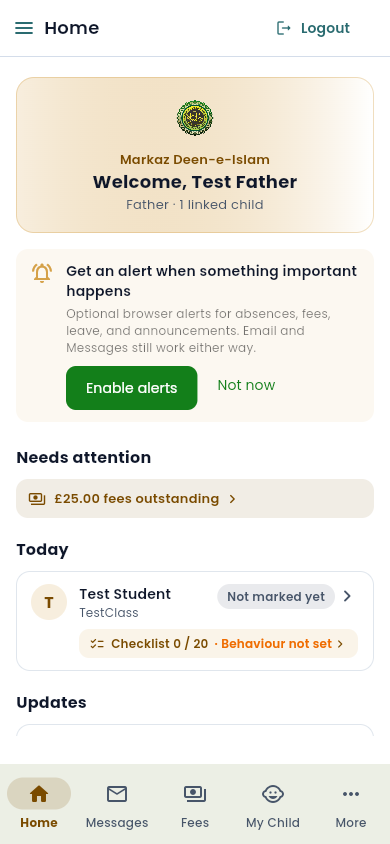
Phone layout of Home with the welcome card for Test Father, £25.00 fees outstanding, Test Student under Today, and a bottom navigation bar.
Figure 34. Home on a phone browser.
Phone More sheet listing Contact and My Profile.
Figure 35. More holds Contact and My Profile.

14. What you can do

You canThe madrasa does this
Install the Android app, or pin the parent web portal on iPhone, Android, or a computerIssue your username. The iPhone app is still to come
See only your linked childrenLink a child to your account
Read attendance, learning, behaviour, activities, and the term reportMark attendance and save progress
Tick today’s and yesterday’s daily checklist, and set your child’s behaviour for the daySet up the checklist items and duas
Follow Let’s Learn Islam progress and download certificatesPublish the lessons
Request leave, and cancel it while it is pendingApprove or reject the request
Read fee totals and pay an amount that is due, by cardSet fees, record cash, and send receipts
Read madrasa emails in Messages, and turn on phone or browser notificationsSend the emails
Update your name, email, phones, address, and passwordChange your username or relationship
Export your own dataHold the student record
If a page looks old. After the parent web portal is updated, refresh the browser. On a phone, close the tab and open https://admin.naginasocialwelfare.co.uk/login/parent again. If you pinned the portal as an app, open that icon once more after the refresh. The Android app updates itself from Google Play.